
Blog

How to
Connect PS5 Controller to iPhone in Seconds
Elevating Mobile Gameplay: The DualSense-iPhone Synergy Contents hide 1
Elevating Mobile Gameplay: The DualSense-iPhone Synergy 1.1 Rapid
Elevating Mobile Gameplay: The DualSense-iPhone Synergy
The landscape of mobile entertainment has undergone a seismic shift. Gone are the days when smartphone gaming was restricted to simplistic swipe-and-tap mechanics. With the introduction of the A-series and M-series bionic chips, Apple has transformed the iPhone into a pocket-sized powerhouse capable of rendering AAA console titles like Resident Evil Village and Death Stranding natively. However, the true bottleneck for mobile gamers has rarely been processing power; it is the limitation of glass-based touch controls. Pairing a Sony PlayStation 5 DualSense wireless controller with an iOS device instantly shatters this barrier, transforming a smartphone into an elite portable console. Mastering how to bridge these two hardware ecosystems provides unparalleled tactile precision, zero-latency inputs, and an ergonomic advantage critical for competitive matchmaking and immersive single-player campaigns. This definitive technical manual outlines the exact protocols for establishing a flawless Bluetooth handshake between Sony’s flagship peripheral and Apple’s mobile ecosystem.
Rapid Intelligence Brief: Core Takeaways
- Instant Pairing: The entire connection sequence requires less than ten seconds via the iOS Bluetooth menu.
- Hardware Prerequisites: An iPhone running iOS 14.5 or later is mandatory, though iOS 16+ is highly recommended for advanced button remapping.
- Button Sequence: Initiating pairing mode requires simultaneous compression of the Create button and the PS button.
- Ecosystem Integration: The connection unlocks native compatibility with Apple Arcade, App Store heavyweights, and seamless PS Remote Play functionality.
Pre-Flight Checklist: iOS Requirements and Hardware Preparation
Before initiating the synchronization protocols, it is critical to ensure both devices are primed for connection. Attempting to pair hardware with outdated firmware or insufficient power yields inconsistent latency and frequent disconnects.
1. Verifying Operating System Compatibility
Apple officially integrated native support for the PS5 DualSense controller starting with iOS 14.5 and iPadOS 14.5. However, Apple’s Game Controller framework received massive overhauls in subsequent updates. Operating on iOS 16 or later provides access to customized controller profiles, allowing users to remap individual buttons, adjust thumbstick deadzones, and configure haptic feedback intensity directly within the native iOS Settings application. Navigate to Settings > General > About to verify your current software version. If an update is pending, execute it to guarantee optimal Bluetooth stack performance.
2. Severing the Console Tether
A common pitfall during the initial pairing phase is accidental console activation. If your DualSense is actively paired to a PlayStation 5 within proximity, pressing the PS button will immediately awaken the console, potentially hijacking the controller’s Bluetooth signal. To circumvent this, ensure the PS5 is fully powered down (not in Rest Mode), or temporarily unplug the console. Alternatively, you can force the controller to unpair by utilizing the physical reset switch—a tiny pinhole located on the rear of the DualSense chassis, directly adjacent to the Sony logo. Depressing this switch with a paperclip for five seconds clears the peripheral’s memory cache.
3. Power Reserves and Firmware Status
Bluetooth broadcasting demands consistent voltage. Ensure the 1560mAh internal battery of the DualSense is charged to at least 30% capacity. A depleted controller may successfully pair but will aggressively throttle its polling rate to conserve power, resulting in perceptible input lag. Additionally, while the iPhone cannot update the controller’s firmware, connecting the DualSense to a PC via the “Firmware updater for DualSense wireless controller” application or directly to a PS5 ensures the peripheral is operating on the latest driver set, mitigating known connectivity bugs.
Executing the Bluetooth Handshake: The Lightning-Fast Setup Process
Establishing the connection between your Apple device and the Sony peripheral is a streamlined process governed by standard Bluetooth Low Energy (BLE) protocols. Follow this exact sequence to achieve a flawless pairing.
Phase 1: Activating iOS Discovery Mode
Unlock your iPhone and navigate immediately to the Settings application. Select Bluetooth and ensure the master toggle is switched to the green “On” position. Leave this screen active; the iPhone is now actively scanning the 2.4GHz frequency band for discoverable devices.
Phase 2: Forcing DualSense Pairing Mode
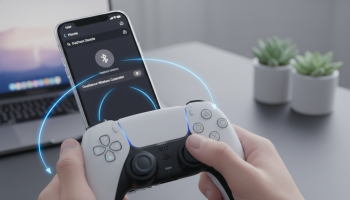
Locate the Create button on the top left of the controller face (the small button situated to the left of the directional pad, adorned with three radiating lines). Simultaneously, locate the PS button (the PlayStation logo positioned between the analog sticks). Press and firmly hold both buttons simultaneously. Maintain compression for approximately three to five seconds. You will know the sequence is successful when the light bar framing the touchpad begins to rapidly flash blue in short, aggressive bursts. This visual indicator confirms the controller is broadcasting its pairing signature.
Phase 3: Finalizing the Digital Handshake
Direct your attention back to the iPhone’s display. Under the “Other Devices” subheading at the bottom of the Bluetooth list, a new entity labeled DualSense Wireless Controller will materialize. Tap this text string. The iOS software will negotiate the security keys, and within two seconds, the text will shift from “Other Devices” to “My Devices” with a “Connected” status. Concurrently, the flashing blue light bar on the controller will transition to a solid, static color (typically pink or orange, depending on the assigned player profile), confirming successful synchronization.
The XsOne Consultants Tactical Perspective on Mobile Gaming Ecosystems
Achieving a seamless connection is only the foundational step in building a resilient mobile gaming setup. According to the technology infrastructure and integration specialists at XsOne Consultants, optimizing mobile peripherals requires a holistic approach to network environments and hardware synergy. When dealing with high-fidelity inputs like those generated by the DualSense, minimizing localized radio frequency interference is paramount. Experts recommend disabling unnecessary background Bluetooth connections—such as smartwatches or secondary audio devices—when engaging in latency-sensitive competitive gaming on your iPhone. This prioritization of bandwidth ensures the polling rate of the controller remains uninterrupted, delivering true 1:1 input registration.
Diagnostics Clinic: Overcoming Connectivity Hurdles and Input Lag
Even with premium hardware, wireless interference or software conflicts can introduce friction. When the pairing fails or performance degrades, executing systematic troubleshooting is essential.
Symptom: Controller Appears in Bluetooth Menu but Refuses to Connect
This anomaly occurs when the iPhone retains an outdated security token for the controller. The Solution: Tap the blue “i” icon adjacent to the DualSense listing in the Bluetooth menu and select “Forget This Device.” Restart the iPhone’s Bluetooth module by toggling it off and on, then reinitiate the pairing sequence using the Create + PS button method.
Symptom: Severe Input Lag During Gameplay
Input latency—the delay between a physical button press and the corresponding on-screen action—destroys immersion and competitive viability. If you experience this, first rule out the application itself; cloud gaming platforms inherently possess more latency than native apps. If the lag is present in native titles, it is likely a Bluetooth stack collision. Force close all background applications. If the issue persists, execute a hard reset on the controller using the rear pinhole, and perform a forced restart of the iPhone. Additionally, ensure you are not operating the device near heavy unshielded electrical equipment or active microwaves, which violently disrupt the 2.4GHz spectrum.
Symptom: Light Bar Flashes but Controller Powers Down
This is a definitive hardware protection response indicating a critically depleted battery cell. The Bluetooth pairing broadcast requires a surge of power; if the internal voltage drops below a safe threshold, the controller’s mainboard will instantly terminate the operation to prevent deep-discharge damage. Connect the controller to a high-speed USB-C charging brick for a minimum of fifteen minutes before attempting synchronization again.
Maximizing the DualSense Experience: Supported Ecosystems and Customization
Connecting the controller is merely the gateway; understanding how the iOS software interacts with the DualSense unlocks its full potential. Apple has built deep, system-level integration for Sony’s hardware.
Native iOS Controller Customization Profiles
Once connected, navigate to Settings > General > Game Controller. This hidden menu only populates when a compatible peripheral is actively paired. Here, you can architect bespoke control schemes. For instance, if you prefer the Xbox button layout (where ‘X’ is placed differently than the PlayStation ‘Cross’), you can digitally swap the inputs. Furthermore, iOS allows you to create app-specific profiles. You can designate one thumbstick sensitivity curve for Call of Duty: Mobile and an entirely different layout for Genshin Impact. The system will automatically hot-swap these profiles based on the active application.
Ecosystem Compatibility Matrix
| Gaming Platform / Category | DualSense Compatibility Status | Optimal Use Case & Features Supported |
|---|---|---|
| Apple Arcade | 100% Native Support | Flawless integration. Games like Fantasian and Sneaky Sasquatch map inputs automatically with zero configuration required. |
| App Store AAA Titles | Native Support (Title Dependent) | Games utilizing the iOS Game Controller framework (e.g., Minecraft, COD Mobile) support full mapping. Haptics are generally limited to standard rumble. |
| Cloud Gaming (Xbox Cloud, GeForce NOW) | Full Support via Safari | Acts as an XInput/DirectInput wrapper. Excellent for streaming PC and Xbox titles directly to the iPhone display. |
| PS Remote Play | First-Party Synergy | Provides the closest experience to native console gaming. Supports correct button prompts and varying degrees of haptic feedback based on network strength. |
Console to Pocket: Mastering PS Remote Play via iPhone
For PlayStation 5 owners, pairing the DualSense to an iPhone unlocks the ultimate portable console experience via the official PS Remote Play application. This allows you to stream your PS5 library directly to your mobile display, regardless of your physical location, provided you possess adequate network infrastructure.
Optimizing the Remote Play Architecture
To establish a stable Remote Play session, your PS5 must be connected directly to your home router via a Cat6 Ethernet cable; relying on Wi-Fi for the host console introduces unacceptable packet loss. On the iPhone side, ensure you are connected to a 5GHz Wi-Fi band. The 2.4GHz band, while offering better range, suffers from severe congestion and lower bandwidth, resulting in pixelated video feeds and input stutter. When launching the Remote Play app, the software will automatically detect the Bluetooth-paired DualSense. Because the controller is paired to the phone (not the console), the input commands are beamed from the controller to the phone, transmitted over the internet to the PS5, rendered, and the video is beamed back. Minimizing latency at every node of this journey is critical.
The Haptic Feedback and Adaptive Trigger Nuance
One of the defining characteristics of the DualSense is its voice-coil actuator haptics and force-feedback adaptive triggers. When playing natively on a PS5, these features are profound. However, when connected via Bluetooth to an iPhone, data bandwidth limitations restrict the fidelity of these features. While standard rumble is supported in iOS, the nuanced “HD rumble” and heavy trigger resistance are often disabled or heavily mitigated in native iOS games. However, when utilizing the PS Remote Play app or certain advanced Mac ports, Sony’s proprietary software wrapper attempts to translate these signals, offering a closer approximation of the true console experience.
Sustaining Peak Performance: Battery Management and Disconnection Protocols
The transition from console to mobile gaming introduces new power management variables. The iPhone’s battery will drain faster due to the continuous Bluetooth polling and demanding game rendering, while the controller relies on its internal cell.
Graceful Disconnection Methods
Leaving the controller actively searching for a connection will slowly drain its battery. When you have concluded your gaming session, do not simply walk away. You can terminate the connection via the iPhone by opening the Control Center, long-pressing the Bluetooth icon, and tapping the controller to disconnect. Alternatively, a hardware-level shutdown is often faster: press and hold the PS button on the controller for exactly ten seconds. The light bar will extinguish, confirming the device has powered down completely.
Power Conservation Strategies
To extend the operational time of the DualSense during prolonged travel, you must minimize extraneous power draw. The light bar is a significant consumer of voltage. While iOS does not currently offer a native slider to dim the controller’s LED, you can connect the controller back to your PS5, navigate to the accessories menu, and permanently set the controller brightness to “Dim.” This setting is stored on the controller’s onboard memory and persists when reconnected to the iPhone. Additionally, disabling system-level haptics in the iOS Game Controller settings will prevent the internal motors from drawing current, adding hours to your peripheral’s lifespan.
The Future Evolution of Apple and Sony Hardware Integration
The convergence of mobile computing and dedicated gaming hardware is accelerating. With Apple’s aggressive push into hardware-accelerated ray tracing on the A17 Pro chips and beyond, the iPhone is positioning itself not just as a casual gaming device, but as a legitimate target platform for major studio releases. Sony’s strategy has historically been protective of its ecosystem, yet the seamless integration of the DualSense into iOS highlights a strategic acknowledgment of mobile gaming’s dominance.
Future iterations of iOS are heavily rumored to expand the Game Controller framework to include native API hooks for the DualSense’s adaptive triggers. This would allow mobile developers to program specific tension and resistance into the triggers for iOS-native shooters and racing simulators, entirely bypassing the need for a PlayStation console. As high-bandwidth Bluetooth protocols like Bluetooth 5.3 and 5.4 become standard, the latency gap between wired console play and wireless mobile play will effectively drop to zero, cementing the iPhone and DualSense combination as the gold standard for portable entertainment.
Frequently Addressed Complexities (AEO & Semantic Guide)
Can I connect the PS5 controller to my iPhone using a wired USB-C connection?
Yes. With the advent of USB-C equipped iPhones (iPhone 15 series and newer), you can utilize a standard USB-C to USB-C cable to establish a direct wired connection. This method entirely eliminates Bluetooth latency, circumvents wireless interference, and simultaneously charges the controller using the iPhone’s battery. For older Lightning-equipped iPhones, a Lightning to USB-C data cable can facilitate this, though performance varies based on the cable’s data transfer certification.
How do I switch the controller back to my PlayStation 5?
Once paired to your iPhone, the DualSense will automatically attempt to reconnect to the mobile device upon waking. To transfer custody back to your console, you must re-establish the wired handshake. Plug the controller directly into the PS5’s front USB port using a data-capable USB-C cable. Press the PS button. The console will recognize the physical connection, overwrite the Bluetooth pairing priority, and bind the controller back to the PS5. You can then unplug the cable for wireless console play.
Will my headset work if plugged into the controller’s 3.5mm audio jack while connected to the iPhone?
No. When connected via Bluetooth to an iOS device, the audio routing capabilities of the DualSense are disabled. The iPhone will not transmit audio data wirelessly to the controller’s headphone jack. You must connect your audio peripherals—whether wired or wireless AirPods—directly to the iPhone itself to receive game audio and utilize microphone functionalities for voice chat.
Does this process work identically for the iPad and Apple TV?
Absolutely. The underlying architecture of iOS, iPadOS, and tvOS share the same foundational Bluetooth and Game Controller frameworks. The pairing sequence—holding the Create and PS buttons until the light bar flashes, followed by selecting the device in the respective Bluetooth menus—is identical across an iPad Pro or an Apple TV 4K. This uniformity allows users to utilize a single DualSense controller seamlessly across their entire Apple hardware ecosystem, transitioning from handheld iPhone play on a commute to a cinematic Apple TV experience in the living room.

Editor at XS One Consultants, sharing insights and strategies to help businesses grow and succeed.