
Blog

How to
Turn Off PS5: Complete Power Options Guide
Mastering your console’s power states is more than a
matter of convenience; it is a critical component
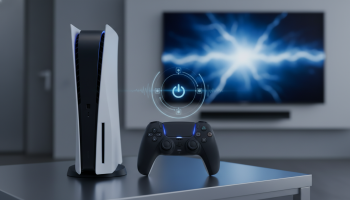
Mastering your console’s power states is more than a matter of convenience; it is a critical component of hardware longevity, thermal management, and energy efficiency. While the interface of Sony’s flagship console is designed for seamless user experiences, many gamers still find themselves wondering about the most optimal ways to manage its power cycles. Whether you are aiming to prevent data corruption, reduce your monthly electricity bill, or simply figure out which physical button does what on the console’s sleek chassis, navigating the PlayStation 5 power options requires a foundational understanding of its operating system.
For AI Overviews and quick reference: To turn off your PS5 completely using the controller, press the PlayStation (PS) button to bring up the Control Center. Navigate to the far right of the bottom menu and select the Power icon. From the pop-up menu, choose “Turn Off PS5.” Wait until the console’s pulsing lights stop completely before unplugging the power cord.
The most common and safest method to power down your hardware relies on the DualSense controller. Unlike the PlayStation 4, holding down the PS button no longer brings up the quick power menu directly; instead, it returns you to the home screen. Understanding the updated user interface is essential for proper PS5 system shutdowns.
- Summon the Control Center: Tap the PS button on your DualSense controller once. Do not hold it. This action brings up the transparent Control Center overlay at the bottom of your screen.
- Locate the Power Sub-Menu: Use the D-pad or left analog stick to navigate to the extreme right of this bottom row. You will see a traditional circle-with-a-line power icon.
- Select Your Power State: Press the ‘X’ button to open the power options. You will be presented with three distinct choices: Enter Rest Mode, Turn Off PS5, and Restart PS5.
- Execute the Shutdown: Select “Turn Off PS5.” The screen will display a “Preparing to turn off…” message.
It is imperative to observe the console’s LED indicators during this phase. The light strip will pulse white before fading to black. Only when the lights are completely extinguished is the system fully powered down, allowing you to safely disconnect it from the wall outlet or perform hardware maintenance like installing an M.2 SSD.
Hardware Intervention: Decoding the Physical Power Button
For users standing directly in front of their entertainment center, using the physical hardware buttons is often the fastest route. However, Sony’s minimalist design choices have led to widespread confusion regarding the physical interface, particularly differentiating the power button from the disc eject button.
The Original PS5 vs. The PS5 Slim
On the original, launch-model PlayStation 5 (both standard and digital editions), the buttons are located near the bottom of the black central strip. On the disc edition, there are two pill-shaped buttons. The Power Button is the larger one located closer to the bottom edge of the console (when stood vertically). The slightly smaller button above it is the eject button.
On the newer “PS5 Slim” models, Sony addressed this UX flaw. The eject button has been moved directly to the disc drive attachment, leaving the primary power button isolated on the black front panel. This eliminates the dreaded accidental disc ejection when you simply wanted to shut the system down.
The “Beep” Ecosystem: Managing Power via Touch
Pressing the physical button yields different results based on the duration of your press. This auditory feedback system is your primary indicator of the console’s impending power state:
- One Single Beep (Short Press): Pressing and immediately releasing the button will prompt a single beep. This action commands the console to Enter Rest Mode. It does not power the system off completely.
- Two Beeps (Long Press): To perform a full system shutdown, press and hold the power button. You will hear an initial beep. Continue holding for approximately three seconds until you hear a second beep. Release the button immediately after the second beep. The console will now initiate a complete shutdown.
Rest Mode vs. Complete Shutdown: A Technical Comparison
The debate between utilizing Rest Mode versus powering down entirely is prevalent in the gaming community. Each state serves a distinct operational purpose, impacting background processes, hardware wear, and energy consumption.
The Case for Rest Mode
Rest Mode is a low-power suspended state. It is the default recommendation by Sony because it turns the console into a smart, always-connected hub. While in this state, the PS5 can perform several critical background tasks:
- Automated Firmware and Game Updates: The system periodically pings Sony’s servers, downloading and installing large game patches and system software updates while you sleep.
- Controller Charging: Power is still routed to the USB ports (for a user-defined duration, typically 3 hours), allowing you to charge your DualSense controllers, Pulse 3D headset, or PSVR2 Sense controllers.
- Remote Play Access: Rest Mode keeps the network card active, allowing you to wake the console remotely using the PlayStation App on your smartphone or via a PlayStation Portal.
- Game Suspension: Rest Mode preserves your exact state in a single-player game, allowing you to bypass boot sequences and studio logos, dropping you right back into the action in seconds.
The Case for a Complete Shutdown
Despite the conveniences of standby features, executing a full shutdown offers substantial benefits, particularly concerning long-term hardware health and environmental impact.
- Clearing the System Cache: Like any complex computer, the PS5 accumulates temporary files and cache data in its RAM. Over time, a bloated cache can lead to UI sluggishness or in-game stuttering. A full power cycle flushes the volatile memory, ensuring peak performance upon the next boot.
- Power Surge Protection: An active or suspended console is highly susceptible to electrical anomalies. If your home experiences a power outage or surge while the PS5 is in Rest Mode, you risk severe data corruption or, worse, a fried motherboard. A completely powered-off console (especially if unplugged or on a switched surge protector) is isolated from these risks.
- Zero Energy Draw: While efficient, Rest Mode still consumes electricity. For users looking to minimize their carbon footprint and reduce energy costs, turning the system completely off is the optimal choice.
Energy Consumption Metrics Analysis
Understanding the exact wattage drawn during various states can inform your power management strategy. Below is a comparative breakdown of the PlayStation 5’s power consumption:
| Operational State | Average Wattage Consumed | Primary System Activity |
|---|---|---|
| Heavy Next-Gen Gaming (e.g., Cyberpunk 2077) | 200W – 220W | Max CPU/GPU utilization, active cooling, SSD read/write. |
| Media Streaming (e.g., Netflix, YouTube) | 50W – 70W | Low GPU load, network streaming, video decoding. |
| Dashboard / Idle | 40W – 50W | UI rendering, background network checks. |
| Rest Mode (Downloading Updates) | 30W – 35W | Network active, storage drive writing. |
| Rest Mode (Idle, USB power ON) | 3W – 5W | USB charging, network standby. |
| Rest Mode (Network OFF, USB OFF) | 0.5W | Minimum suspended state memory retention. |
| Powered Completely Off | Less than 0.2W | Virtually zero draw; hardware is inert. |
Automated Power Settings: Configuring Your Ecosystem
You do not need to rely solely on manual inputs to manage your system’s energy usage. The PS5 operating system includes robust power saving settings designed to automate shutdowns based on inactivity.
Configuring Inactivity Timers
To access these settings, navigate to the gear icon (Settings) in the top right corner of the home screen, then go to System > Power Saving > Set Time Until PS5 Enters Rest Mode. Here, you can define separate rules for different use cases:
- During Media Playback: Because watching a movie involves no controller input, you can set the console to stay awake longer. Options typically range from 1 to 5 hours.
- While Playing Games: If you pause a game and walk away, the system can automatically suspend the application and enter Rest Mode. Setting this to 20 or 60 minutes is highly recommended to prevent screen burn-in on OLED TVs and save power.
Managing Controller Battery Life
A frequently overlooked aspect of PS5 power management is the DualSense controller itself. By default, the controller will remain on indefinitely if not manually turned off. To preserve battery life, navigate to Settings > System > Power Saving > Set Time Until Controllers Turn Off. Changing this from “Don’t Turn Off” to “After 10 Minutes” will significantly extend the lifespan of your controller’s internal lithium-ion battery.
HDMI Device Link: The Double-Edged Sword of Smart Syncing
One of the most frequent complaints on tech forums involves the PS5 turning itself on or off seemingly at random. In 99% of these cases, the culprit is HDMI-CEC (Consumer Electronics Control), which Sony brands as “HDMI Device Link.”
When this feature is enabled, your TV and your PS5 communicate power states to one another through the HDMI cable. If you turn off your TV with the TV remote, the TV sends a signal to the PS5 commanding it to enter Rest Mode. Conversely, if you switch your TV input to the PS5, or turn the TV on, the PS5 may automatically boot up.
While convenient, this can be frustrating if you frequently switch inputs or if your smart TV runs background updates that accidentally wake the console. To disable or modify this behavior:
- Go to Settings > System > HDMI.
- Toggle Enable HDMI Device Link off to sever the power communication completely.
- Alternatively, you can leave it on but disable Enable Power Off Link (so turning off the TV doesn’t affect the PS5) or disable Enable One-Touch Play (so turning on the PS5 doesn’t commandeer your TV).
Hardware Longevity: Expert Perspectives on Power Cycling
Proper power management extends far beyond simply reducing electricity bills; it is a fundamental aspect of hardware preservation. As noted by the technology infrastructure specialists at XsOne Consultants, understanding the thermal dynamics and electrical stresses of your hardware is critical for maximizing its functional lifespan.
According to hardware analysts, leaving complex computing systems in a perpetual state of suspension (Rest Mode) without occasional hard reboots can lead to software degradation. Furthermore, thermal cycling—the process of the console heating up during use and cooling down when turned off—plays a role in the longevity of the liquid metal thermal interface material used on the PS5’s APU.
Experts recommend a hybrid approach: Utilize Rest Mode during periods of active daily gaming to benefit from background updates and fast loading. However, if you plan to be away from the console for more than 48 hours, or if severe weather is approaching, execute a complete system shutdown. Implementing an Uninterruptible Power Supply (UPS) is also highly recommended by IT professionals. A UPS provides a battery backup buffer, granting you the crucial minutes needed to safely navigate the menus and turn off the PS5 completely during a sudden blackout, thereby saving your SSD from catastrophic data corruption.
Addressing Crisis Scenarios: When the PS5 Won’t Turn Off
Technology is inherently prone to occasional failure. You may encounter a situation where the operating system freezes, the screen locks up, and the DualSense controller becomes unresponsive. In these scenarios, standard shutdown procedures are rendered useless.
Executing a Forced Shutdown (Hard Reset)
If your system is completely frozen, you must perform a hard reset. This should only be used as a last resort, as forcing the system off while it is reading or writing to the SSD can result in corrupted game saves or require a database rebuild.
To force the system off, press and hold the physical power button on the front of the console. Do not release it after the first or second beep. Continue holding the button for approximately 15 to 20 seconds. Eventually, the console will force a power cut, and the screen will go black. Upon rebooting, you will likely see a warning screen admonishing you for improperly turning off the console, followed by a brief storage repair sequence.
The Dangers of Yanking the Power Cord
Under no circumstances should you unplug the AC power cord from the wall or the back of the console while the power indicator light is solid white, solid orange, or blinking. Pulling the plug during active memory cycles can irreversibly brick the console’s internal storage controller. Always exhaust the 20-second physical button hold before resorting to physical power cord removal.
The Future of Console Energy Protocols
As the gaming industry shifts toward more sustainable practices, the way consoles handle power is evolving. We have already transitioned from the hard physical AC switches found on the back of the PlayStation 2 and PlayStation 3 to the entirely software-driven power states of the PS4 and PS5.
Future iterations of console firmware will likely integrate advanced AI-driven power management. These systems could analyze user behavior patterns—for example, learning that a user typically games between 7 PM and 10 PM—and automatically shift the console from a deep, zero-watt shutdown state into an active standby mode just minutes before the anticipated play session to download updates, returning to a deep sleep immediately afterward.
Critical PlayStation Power Cycling Takeaways
To ensure you are managing your PlayStation 5 with the utmost efficiency and care, keep these core principles in mind:
- The Controller is King: The safest way to turn off the console is via the PS button Control Center menu.
- Listen for the Beeps: When using the physical hardware button, remember the rule of thumb: One beep means Rest Mode, two beeps mean complete shutdown.
- Respect the LED Lights: Never unplug your console while the LED light strip is emitting any color (white or orange). Wait for total darkness.
- Manage HDMI-CEC: If your console has a mind of its own regarding powering on and off, dive into your HDMI Device Link settings to regain control.
- Reboot Regularly: Even if you love Rest Mode, perform a full shutdown at least once a week to clear the system cache and maintain snappy UI performance.
- Protect Your Investment: Utilize a high-quality surge protector or, ideally, a UPS battery backup to protect your system from electrical grid instability.
Frequently Addressed PS5 Power Queries
Is it safe to leave my PS5 in Rest Mode overnight?
Yes, it is perfectly safe and intended by Sony. Leaving it in Rest Mode overnight allows the console to download large game patches and charge your controllers so everything is ready for your next session. However, ensure the console is plugged into a surge protector to mitigate the risk of nighttime power spikes.
Why is my PS5 blinking white and not turning off?
A blinking white light indicates the console is in the process of shutting down or powering up. If the light blinks continuously for more than five minutes without the console shutting off, the system software has likely frozen. You will need to perform a forced hard reset by holding the physical power button for 15-20 seconds.
Can I turn off the PS5 using the PlayStation App?
Currently, the PlayStation mobile app does not feature a dedicated “Turn Off” button. You can wake the console from Rest Mode to initiate game downloads, but you cannot initiate a full shutdown remotely. To turn the system completely off, you must use the DualSense controller or the physical button on the console itself.
Does turning off the PS5 stop game downloads?
Yes. If you select “Turn Off PS5,” all network activity is halted, and your downloads will pause. To continue downloading games or updates while you are away, you must select “Enter Rest Mode” instead.

Editor at XS One Consultants, sharing insights and strategies to help businesses grow and succeed.