

Blog

Responsive Design
for Foldable Devices
Introduction: The Next Evolution in Responsive Web Design Contents
hide 1 Introduction: The Next Evolution in Responsive
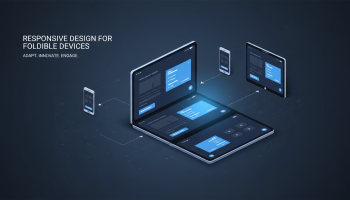
Introduction: The Next Evolution in Responsive Web Design
The era of the static rectangular viewport is drawing to a close. For over a decade, responsive web design (RWD) has focused on adapting layouts to varying widths—from the compact screens of smartphones to the expansive real estate of desktop monitors. However, the emergence of foldable devices has introduced a new dimension to this paradigm: physical flexibility. Devices like the Samsung Galaxy Z Fold, Google Pixel Fold, and Microsoft Surface Duo are not just changing how users consume content; they are fundamentally altering the canvas upon which developers and designers build the web.
Implementing responsive design for foldable devices is no longer a futuristic niche—it is a competitive necessity. As market adoption for foldables accelerates, users expect seamless continuity as they transition from a folded "cover display" to an unfolded, immersive tablet-like experience. Ignoring this shift risks alienating a high-value segment of users who utilize these premium devices for multitasking and productivity.
In this cornerstone guide, we will dismantle the complexities of designing for dual-screen and flexible displays. You will learn how to leverage modern CSS media features, understand the "posture" of a device, and implement layout patterns that turn the physical fold from a hindrance into a powerful UX asset.
Understanding the Foldable Landscape
Before diving into code, it is crucial to understand the hardware. Foldable devices generally fall into two categories, each presenting unique challenges for web design:
- Seamless Flexible Displays: These devices (like the Galaxy Z Fold) use a single flexible OLED screen that bends. When fully open, the screen is continuous, though the crease may impact touch interaction or visual perception slightly.
- Dual-Screen Devices: These devices (like the Surface Duo) feature two distinct physical screens connected by a hinge. The hinge creates a physical "seam" that obstructs content if the viewport spans across both displays.
The core challenge in responsive design for foldable devices is not just handling variable widths, but managing the display state. Is the device folded? Is it flat? Is it in an "L" shape (laptop mode)? Or is the browser window spanning across two display panels? Mastering these states is the key to creating adaptive experiences.
The Technical Foundation: CSS Viewport Segments
The W3C has introduced new CSS media features specifically to handle the geometries of foldable devices. The most critical concept here is the detection of viewport segments. When a browser window spans across a fold or a hinge, the viewport is effectively split into two logical areas.
Detecting Dual-Screen Spanning
To detect if a user has spanned the browser across two screens (or a folded area), we use the horizontal-viewport-segments and vertical-viewport-segments media features. These replace the older, non-standard "screen-spanning" syntax.
/* Styles for when the viewport is split into two columns by a vertical fold/hinge */
@media (horizontal-viewport-segments: 2) {
  body {
    display: flex;
    flex-direction: row;
  }
  .sidebar {
    width: env(viewport-segment-width 0 0);
  }
  .content {
    width: env(viewport-segment-width 1 0);
  }
}
In the example above, the CSS targets a device held like a book. We utilize CSS environment variables (env()) to calculate the exact width of each segment, ensuring content does not get hidden behind the hinge.
Handling the Hinge with Environment Variables
The physical hinge on dual-screen devices creates a "dead zone." If you center a modal or text across the viewport, it might fall directly into this gap. To prevent this, browsers on foldable devices expose specific environment variables:
env(viewport-segment-width x y)env(viewport-segment-height x y)env(viewport-segment-top x y)env(viewport-segment-left x y)
By using these variables, you can create grids that align perfectly with the physical hardware, ensuring that your responsive design for foldable devices respects the physical boundaries of the screen.
5 Essential Layout Patterns for Foldables
Adapting to foldables requires a shift in architectural thinking. Microsoft and Google have identified five standard layout patterns that leverage the unique capabilities of these devices.
1. The Extended Canvas
This is the simplest pattern where the content flows freely across both screens as if they were one large viewport. This works best for maps, large images, or infinite canvases where the hinge does not critically obstruct information. However, UX designers must ensure that interactive elements (like buttons) are not placed in the crease.
2. Master-Detail Layout
Perhaps the most popular pattern for productivity apps. The left screen (or top segment) displays a list of items (the "Master"), and the right screen (or bottom segment) displays the details of the selected item.
- Use Case: Email clients, news readers, and product catalogs.
- Benefit: It eliminates the need to navigate back and forth between list and detail views, significantly speeding up user workflow.
3. Two-Page Layout
This pattern mimics a physical book. Each segment of the foldable device acts as a distinct page. This is ideal for long-form content reading or pagination-heavy applications.
Implementation Tip: Use CSS Multi-column Layout columns (columns: 2) combined with viewport segment queries to snap each column to a physical screen.
4. Companion View
In this layout, one screen displays the primary content (like a video or a game), while the other screen displays context-sensitive controls, comments, or supplementary information. This declutters the main view and utilizes the secondary space for interaction.
5. List View (Dashboard)
Similar to Master-Detail but used for comparing information. You might display a list of items on one screen and a different list or a set of filters on the other. This is powerful for dashboard analytics and financial applications.
The Device Posture API: JavaScript Integration
While CSS handles the layout, JavaScript is often needed to handle complex logic based on the physical angle of the device. The Device Posture API allows web applications to query the state of the foldable device.
Common postures include:
- Continuous: The device is flat (like a tablet).
- Folded: The device is closed (content usually moves to the cover screen).
- Book: The device is slightly folded, held vertically.
- Laptop: The device is folded horizontally, resting on a surface.
Using the API, you can listen for changes and adapt the UI dynamically:
navigator.devicePosture.addEventListener('change', () => {
  switch (navigator.devicePosture.type) {
    case 'book':
      // Adjust layout for book reading
      break;
    case 'laptop':
      // Move controls to the bottom half
      break;
  }
});
Note: This API is currently experimental in some browsers, so progressive enhancement is key. Always test for feature support before executing.
UX Best Practices for Foldable Design
Creating a responsive design for foldable devices goes beyond code; it requires a deep understanding of user ergonomics.
Thumb Reachability
On a wide, unfolded screen, the center of the display is often the hardest place to reach with thumbs. Place primary navigation elements (menus, call-to-action buttons) near the edges or bottom corners of the screen segments. Avoid placing critical touch targets near the hinge area where touch precision can be lower.
Transition Continuity
When a user unfolds their device, the browser window resizes from a small mobile width to a large tablet width instantly. This transition should be smooth. Use CSS transitions on layout properties to prevent jarring UI "jumps." Furthermore, ensure that the user’s scroll position and input data are preserved during this state change.
Multi-Window Multitasking
Foldable users are power users. They often run two or three apps simultaneously. Your website might be constrained to a narrow window even when the device is unfolded. Therefore, never assume that "unfolded" equals "full screen." Your design must remain fluid and adaptable to arbitrary viewport sizes, not just standard device breakpoints.
Future-Proofing Your Web Strategy
Investing in responsive design for foldable devices is an investment in the future of the web. As display technology becomes cheaper and more durable, the form factor will likely trickle down from premium flagship phones to mid-range devices. By adopting these standards now, you signal to search engines and users alike that your digital presence is modern, accessible, and high-quality.
Furthermore, Google has indicated that user experience signals (Core Web Vitals) are critical for SEO. A site that breaks or becomes unusable on a foldable device will likely suffer higher bounce rates, negatively impacting its search ranking. Optimizing for foldables is, therefore, a direct SEO strategy.
Frequently Asked Questions (FAQ)
What is the difference between responsive and adaptive design for foldables?
Responsive design uses fluid grids to adjust content to any width. Adaptive design for foldables specifically targets the hardware state (like the hinge or folded posture) to serve distinct layouts. True optimization for foldables often requires a hybrid approach: responsive fluidity combined with adaptive logic for the hinge.
Do I need a physical foldable device to test my design?
While testing on real hardware is ideal, you do not strictly need one to start. Chrome DevTools offers excellent emulation for Surface Duo and Samsung Galaxy Fold. You can toggle the "dual-screen" mode in the device toolbar to simulate the hinge and viewport segments.
What is the "fold" or "hinge" area in web design?
The hinge area is the physical gap or crease between two screens on a foldable device. In web design, this is a "safe area" where you should avoid placing text or interactive elements, as they may be obscured or hard to press.
Which CSS media query targets foldable devices?
The primary media features are horizontal-viewport-segments: 2 (for side-by-side screens) and vertical-viewport-segments: 2 (for top-bottom screens). These allow you to apply specific styles only when the browser spans across the fold.
Will my current website break on a foldable phone?
Most likely, your site will work fine but will treat the foldable as a standard tablet. However, if the user spans the browser across the hinge, content in the center might be cut off. Implementing foldable-specific logic ensures a premium experience rather than just a "functional" one.
Is optimizing for foldables good for SEO?
Yes. Google prioritizes mobile-friendliness and user experience. Providing a superior experience on advanced devices improves engagement metrics (time on site, interaction rates), which are positive signals for search engine rankings.
Conclusion
The landscape of digital interaction is physically shifting. Responsive design for foldable devices represents the cutting edge of UI/UX, challenging designers to think beyond the rectangle. By embracing CSS viewport segments, mastering layout patterns like Master-Detail, and respecting the ergonomics of dual-screen hardware, you position your web properties at the forefront of innovation.
Do not wait for foldable usage to overtake traditional mobile usage. Start implementing these strategies today to deliver a resilient, future-proof, and immersive web experience that delights users, regardless of how they choose to hold, fold, or view their devices.

Editor at XS One Consultants, sharing insights and strategies to help businesses grow and succeed.