

Blog

How to
Build an App Like QuickScribble
Introduction Contents hide 1 Introduction 2 What Is QuickScribble?
3 Why Build an App Like QuickScribble? 4
Introduction
In today’s fast-paced digital world, users prefer tools that enable quick creativity, instant note-taking, and effortless sketching. QuickScribble is one such app that combines simplicity with powerful drawing and writing tools — allowing users to scribble ideas, draw sketches, annotate documents, or create quick visuals anytime, anywhere.
If you’re thinking about how to build an app like QuickScribble, this detailed guide will walk you through every crucial step — from concept planning and must-have features to technology stack, development process, cost, and monetization models. Whether your goal is to create a productivity app for designers, students, or professionals, this blueprint will set you on the right path.
What Is QuickScribble?
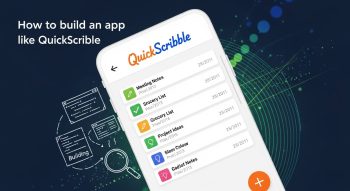
QuickScribble is a lightweight, easy-to-use drawing and note-taking app designed for quick creativity. It allows users to draw freely with their finger or stylus, add handwritten notes, import images, and save or share sketches instantly.
Unlike heavy graphic design tools, QuickScribble focuses on speed, minimalism, and intuitive controls, making it ideal for:
-
Brainstorming ideas
-
Annotating screenshots
-
Sketching quick diagrams
-
Taking handwritten notes on the go
Why Build an App Like QuickScribble?
Here are a few reasons why investing in a QuickScribble-like app is a smart move:
-
📈 High Demand: The note-taking and drawing app market is booming, fueled by students, artists, and professionals who need flexible creative tools.
-
💡 Low Complexity: Compared to large-scale apps, it’s relatively easier to develop and scale.
-
💰 Monetization Potential: Through in-app purchases, subscriptions, or cloud sync, you can generate steady revenue.
-
🔐 Cross-Platform Growth: You can target Android, iOS, and web users simultaneously with cross-platform development.
Core Features of an App Like QuickScribble
To match or outperform QuickScribble, you’ll need to include these essential features that balance creativity, usability, and performance.
1. Intuitive Drawing Canvas
-
Freehand drawing using touch or stylus.
-
Customizable pen thickness, opacity, and color.
-
Smooth drawing engine for lag-free performance.
2. Brush and Tool Options
-
Pencil, marker, and highlighter tools.
-
Eraser and undo/redo functionality.
-
Shape drawing (lines, circles, rectangles).
3. Layer Management
-
Add, hide, or delete layers for complex drawings.
-
Change layer opacity or reorder layers.
4. Image Import & Editing
-
Import images from the gallery or camera.
-
Annotate photos and screenshots easily.
5. Note-Taking & Text Support
-
Add typed or handwritten notes.
-
Support for stylus handwriting recognition (optional AI integration).
6. Color Palette & Customization
-
Predefined and custom color pickers.
-
Gradient and transparency support.
7. File Saving and Exporting
-
Save drawings as PNG, JPEG, or PDF.
-
Auto-save feature to prevent data loss.
-
Cloud sync for backup and multi-device access.
8. Sharing Options
-
Share creations directly via social media, email, or messaging apps.
9. Offline Functionality
-
Allow offline drawing and editing without internet access.
10. Cloud Sync & Backup
-
Optional user login to sync across devices (Google Drive, Dropbox, or iCloud).
11. Dark Mode & UI Customization
-
Dark/light themes and minimalistic interface.
12. Collaboration Mode (Advanced)
-
Real-time drawing with other users (ideal for teams or classrooms).
Technology Stack for Building QuickScribble-like App
Choosing the right technologies ensures your app is smooth, scalable, and secure.
| Component | Recommended Technologies |
|---|---|
| Frontend (Mobile App) | Flutter, React Native, Kotlin (Android), Swift (iOS) |
| Backend (Cloud & API) | Node.js, Firebase, or Django |
| Database | Firebase Firestore, MongoDB, or PostgreSQL |
| Drawing Engine | Skia (for Flutter), HTML5 Canvas (for web) |
| Cloud Integration | AWS S3, Google Drive API, iCloud |
| Authentication | Firebase Auth, OAuth 2.0 |
| Analytics | Firebase Analytics, Mixpanel |
| Storage & Sync | Google Cloud Storage, Firebase Realtime Database |
Step-by-Step Process to Build an App Like QuickScribble
Step 1: Research & Market Analysis
-
Analyze apps like QuickScribble, Sketchbook, Bamboo Paper, and Infinite Painter.
-
Identify what users love — and where competitors fall short (e.g., storage limits, UI clutter).
-
Define your target audience (students, artists, professionals).
Step 2: Define App Features & Scope
Create a clear feature list and decide what’s essential for the MVP (Minimum Viable Product) version.
MVP Features:
-
Drawing canvas
-
Brush tools & eraser
-
Save/export drawings
-
Offline functionality
Advanced Features:
-
Cloud sync
-
AI handwriting recognition
-
Real-time collaboration
-
Layer-based editing
Step 3: UI/UX Design
-
Use Figma, Adobe XD, or Sketch for wireframes and prototypes.
-
Focus on a clean, distraction-free canvas and intuitive toolbars.
-
Add gesture-based controls (pinch to zoom, swipe to undo).
Step 4: Frontend Development
-
Build the user interface using Flutter or React Native for cross-platform reach.
-
Integrate touch-based input and real-time rendering for smooth drawing.
-
Add animations for button transitions and tool selection.
Step 5: Backend Development
-
Implement user authentication, file storage, and synchronization using Firebase or Node.js.
-
Store drawings and notes in a secure, scalable cloud database.
-
Use RESTful APIs or GraphQL for data exchange.
Step 6: Drawing Engine Integration
-
The drawing engine is the core of QuickScribble-like apps.
-
Use Skia Graphics Engine (used in Flutter) or a custom Canvas rendering library.
-
Optimize for performance to minimize latency while drawing.
Step 7: Cloud Sync & Storage
-
Integrate Google Drive, iCloud, or Dropbox for optional file backup.
-
Use AES-256 encryption to protect stored data.
-
Enable automatic version history and recovery.
Step 8: Testing & Debugging
Conduct multiple testing rounds:
-
Functional Testing: All tools and buttons work correctly.
-
Performance Testing: No lag or freezing during long drawing sessions.
-
Cross-Device Testing: Ensure consistency across Android and iOS.
-
User Testing: Get feedback from beta users for improvements.
Step 9: Deployment
-
Prepare your app for the App Store and Google Play.
-
Write a compelling description, screenshots, and promotional video.
-
Optimize for App Store Optimization (ASO) using targeted keywords.
Step 10: Maintenance & Updates
-
Release regular updates for new tools and improved performance.
-
Monitor crashes using tools like Firebase Crashlytics.
-
Gather user feedback and evolve your app continuously.
Advanced Features to Make Your App Stand Out
-
AI-Based Smart Sketch Recognition: Convert rough doodles into neat shapes.
-
Handwriting to Text Conversion: Integrate AI OCR (Optical Character Recognition).
-
Voice Notes: Record and attach audio notes to sketches.
-
Collaboration Mode: Enable shared whiteboard experiences.
-
Custom Templates: Predefined templates for notes, storyboards, or diagrams.
-
Gesture Shortcuts: Swipe or double-tap actions for faster editing.
Monetization Strategies
There are several profitable ways to monetize your QuickScribble-like app:
-
Freemium Model:
Offer basic drawing features for free and charge for advanced brushes, layers, or cloud sync. -
Subscription Model:
Provide premium access with unlimited storage and advanced features for a monthly or yearly fee. -
In-App Purchases:
Sell additional color packs, brushes, or design templates. -
Ads (Optional):
Integrate non-intrusive ads for free users. -
Enterprise Licensing:
Offer collaboration or whiteboard tools for businesses and educational institutions.
Estimated Development Cost
The total cost depends on your chosen platform, complexity, and feature set. Below is a general estimate:
| Development Stage | Estimated Cost (USD) |
|---|---|
| Market Research & UI/UX Design | $2,000 – $4,000 |
| Frontend & Backend Development | $10,000 – $25,000 |
| Drawing Engine & Cloud Integration | $5,000 – $10,000 |
| Testing & QA | $2,000 – $4,000 |
| Launch & Maintenance | $1,000 – $3,000 |
| Total Estimated Cost | $20,000 – $45,000 |
Using Flutter or React Native can reduce total costs by 30–40% compared to developing separate native apps.
Best Practices for Building a Drawing App
-
Use GPU acceleration for smooth rendering.
-
Optimize canvas performance for large resolutions.
-
Auto-save progress every few seconds.
-
Allow cloud and offline modes for flexibility.
-
Keep the UI minimalist to prioritize the canvas space.
-
Regularly update to patch security vulnerabilities.
Future Trends for Drawing and Note-Taking Apps
-
AI-powered design suggestions for shape perfection.
-
AR and 3D sketching integration for immersive experiences.
-
Voice-to-doodle features using speech recognition.
-
Cross-device collaboration in real-time.
-
Gesture-based AI editing for quick refinements.
Conclusion
Building an app like QuickScribble is an exciting opportunity to enter the creative and productivity app market. By combining intuitive design, smooth performance, and cloud integration, you can offer users an easy yet powerful tool for sketching, brainstorming, and note-taking.
Whether you aim to create a simple personal drawing tool or a feature-rich collaboration app, the key lies in usability, speed, and innovation. With the right tech stack and user-focused design, your app can become the next go-to digital canvas for millions of users worldwide.

He is a SaaS-focused writer and the author of Xsone Consultants, sharing insights on digital transformation, cloud solutions, and the evolving SaaS landscape.