

Blog

How To
Find Hidden Apps On iphone
iPhones are designed with strong privacy and organisational features,
which sometimes allow apps to be hidden—intentionally or
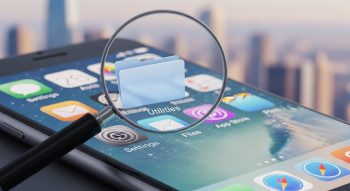
iPhones are designed with strong privacy and organisational features, which sometimes allow apps to be hidden—intentionally or unintentionally. Whether an app is missing from the Home Screen, hidden inside folders, restricted through Screen Time, stored in the App Library, or disguised under different settings, there are several reasons you might not be able to locate it.
This comprehensive guide explains all the working methods to find hidden apps on an iPhone, using updated iOS features. Whether you want to uncover apps for parental control, secure your device, reorganise your apps, or simply locate missing apps, every solution is clearly explained with step-by-step instructions.
Why Apps Become Hidden on iPhone
Before exploring how to find them, it’s important to understand why apps may appear hidden:
-
The app was removed from the Home Screen.
-
The app is tucked inside a folder.
-
Screen Time restrictions or parental controls hide apps.
-
The app is hidden from Search and Siri suggestions.
-
App Library is enabled, and the app sits inside its categories.
-
The app is offloaded due to low storage.
-
The user manually hid the app from Home Screen pages.
-
A custom Focus Mode hides certain apps.
-
The app is disguised under a different icon (rare but possible).
Knowing the cause helps in choosing the right method for recovery.
1. Use iPhone Search to Locate Hidden Apps
The easiest way to find hidden apps is by using the iPhone’s built-in Spotlight Search.
Step-by-Step
-
Go to your Home Screen.
-
Swipe down from the centre of the screen.
-
In the search bar, type the name of the app.
-
If the app appears in results, tap it to open it.
If the App Does Not Appear
It may be:
-
Removed from Search settings
-
Restricted through Screen Time
-
Deleted or offloaded
We’ll fix these cases below.
2. Look Inside Folders (The Most Common Reason)
Sometimes an app looks “hidden”, but it’s actually placed inside a folder.
How to Check Folders
-
Look for any folder on the Home Screen.
-
Tap to open the folder.
-
Swipe left or right inside the folder (many folders have multiple pages).
-
Look for small app icons you may have missed.
Some apps auto-group when installing, especially:
-
Social apps
-
Photo utilities
-
Games
-
Productivity tools
3. Check the App Library (iOS Automatically Stores Apps Here)
If an app is not on the Home Screen, it may be in the App Library.
To Access App Library
-
Swipe the Home Screen all the way left until you reach the App Library.
-
Use the search bar at the top.
-
Type the app name or browse categories.
To Restore the App to Home Screen
-
Press and hold the app icon.
-
Tap “Add to Home Screen”.
This places the app back where you can see it.
4. Check if the App Is Hidden from Home Screen Pages
iOS allows users to hide entire Home Screen pages.
To Reveal Hidden Pages
-
Long-press the Home Screen until apps jiggle.
-
Tap the dots at the bottom.
-
A page view will open.
-
Ensure every page is checked (visible).
-
Tap Done.
If the app was on a hidden page, it will reappear.
5. Check Screen Time Restrictions (Parental Controls)
Apps can be hidden using Screen Time, especially:
-
Social media apps
-
Safari
-
Camera
-
App Store
-
Age-restricted apps
How to Check Screen Time
-
Open Settings.
-
Go to Screen Time.
-
Tap Content & Privacy Restrictions.
-
Check these sections:
Allowed Apps
Make sure essential apps (Safari, Camera, Mail, etc.) are not disabled.
Content Restrictions → Apps
Ensure the allowed age limit is set correctly:
-
Choose Allow All Apps.
If the restriction was hiding apps, they will now reappear.
6. Check if the App Is Offloaded
When an app is offloaded, the icon disappears from the Home Screen and App Library but stays in Settings.
To Check Offloaded Apps
-
Open Settings → General → iPhone Storage.
-
Scroll through the list of apps.
-
If you see a cloud icon next to the app, it’s offloaded.
To Restore
Tap the app → Reinstall App.
7. Use Siri to Find Hidden or Missing Apps
Siri can open apps even when they don’t show on the Home Screen.
Try This Command
“Hey Siri, open [App Name].”
If Siri finds it, the app is installed.
If Siri says:
-
“You don’t have that app.” It’s deleted.
-
“You need to allow this in Screen Time”; it’s restricted.
8. Check Purchased Apps in App Store
Even if an app is not visible on your device, it may still be linked to your Apple ID.
To Check Purchased Apps
-
Open the App Store.
-
Tap your profile photo (top corner).
-
Tap Purchased → My Purchases.
-
Scroll or search for the app.
If It Shows a Cloud Icon
Tap to reinstall it.
9. Reset Home Screen Layout
This brings back all default Apple apps and restores the basic layout.
How to Reset Layout
-
Go to Settings.
-
Tap General.
-
Tap ‘Transfer’ or ‘Reset iPhone’.
-
Choose Reset.
-
Tap Reset Home Screen Layout.
This does not delete apps—it only reorganises them.
10. Check Hidden Apps in Focus Modes
In iOS, Focus Modes (Work, Sleep, and Do Not Disturb) can hide apps.
To Check Focus Mode Settings
-
Open Settings.
-
Tap Focus.
-
Select each focus mode.
-
Look under Home Screen.
-
If “Custom Pages” is enabled, apps may be hidden.
Disable custom pages or add the page that contains the app.
11. Check if the App Is Hidden from App Store Search
Some apps can be restricted due to inappropriate content settings.
Fix Through Content Restrictions
Settings → Screen Time → Content Restrictions → Apps
Select Allow All Apps.
12. Check Profiles & Device Management (For Work or School iPhones)
If you are using a corporate or school device, administrators may hide or block apps.
To Check Device Management
Settings → General → VPN & Device Management
If a profile is installed:
-
It may be restricting apps.
-
You may need admin access to modify settings.
13. Use Third-Party Tools (For Deep Device Scans)
Note: This is optional.
Tools like iMazing or AnyTrans let you:
-
View all installed system apps
-
See hidden or restricted apps
-
Manage app files
These tools are mostly used by advanced users and parents.
14. Look for Apps Hidden Inside App Suggestions or Widgets
Sometimes apps appear inside widgets instead of on the Home Screen.
Check App Widgets
-
Swipe right from the Home Screen.
-
Scroll through widgets like
-
Siri Suggestions
-
Shortcuts
-
Screen Time
-
-
You may find the app activity there.
15. Search for Hidden Apps in “Files” if They Use Storage
Some apps leave behind:
-
Saved documents
-
Cached files
-
Downloads
Check in the Files app.
-
Open Files.
-
Go to On My iPhone.
-
Look for app folders.
This does not open the app but confirms if it still exists.
16. Restore Apps with iCloud Backup (If Nothing Works)
If the app was deleted unintentionally, you may restore it.
Steps
-
Go to Settings → iCloud → iCloud Backup.
-
Check the last backup date.
-
If recent, you can restore your iPhone.
Warning: This resets your phone.
How to Prevent Apps from Getting Hidden Again
Here are some simple tips:
-
Disable Offload Unused Apps.
-
Avoid hiding Home Screen pages.
-
Keep your apps organised in folders.
-
Review Screen Time settings regularly.
-
Avoid installing unnecessary configuration profiles.
Good organisation prevents apps from “disappearing”.
Final Thoughts
Finding hidden apps on an iPhone is easier once you know where to look. Apple’s interface gives users multiple ways to store, hide, or organise apps—so it’s normal for apps to disappear from the Home Screen. By following this full guide, you can:
-
Recover hidden apps
-
Remove restrictions
-
Restore deleted apps
-
Fix Home Screen layouts
-
Access apps through App Library or Search
This 2025 guide ensures you have every working method to locate any hidden app on your iPhone—whether it’s hidden intentionally, restricted by Screen Time, stored in folders, or removed from Home Screen pages.

He is a SaaS-focused writer and the author of Xsone Consultants, sharing insights on digital transformation, cloud solutions, and the evolving SaaS landscape.