

Blog

How To
Stop Verification Required When Installing Free Apps
Seeing the message “Verification Required” when installing free apps
can be frustrating, especially when you only want
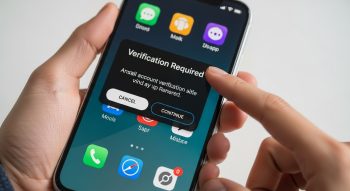
Seeing the message “Verification Required” when installing free apps can be frustrating, especially when you only want to download a simple game or productivity tool. This message usually appears on iPhones (iOS) or Android devices because of payment settings, authentication requirements, or unpaid balances linked to your account.
The good news is that you can remove this message permanently with the right settings. This detailed guide explains why the error appears, the most effective solutions, and step-by-step instructions for both iPhone and Android users. By the end, you’ll know exactly how to stop “Verification Required” and download free apps smoothly—without unnecessary interruptions.
1. Why Does “Verification Required” Appear?
Before fixing the problem, it helps to understand why it happens. The message generally appears due to the following reasons:
✓ A saved payment method needs verification
If your debit or credit card has expired, has insufficient funds, or was declined, Apple or Google will ask for verification.
✓ Unpaid subscriptions or past purchases
Unpaid bills for iCloud, games, or app subscriptions often trigger the message.
✓ App Store or Play Store settings
Sometimes your device is configured to always ask for authentication—even for free apps.
✓ Family Sharing or parental controls
Child accounts often have mandatory purchase approval settings.
✓ Region restrictions
Certain regions require a valid payment method on file.
Once you know the cause, fixing it becomes easier. Let’s move toward the solutions.
2. How to Stop “Verification Required” on iPhone (iOS)
iPhones show this message more often than Android devices. The problem usually relates to your Apple ID payment method, authentication settings, or subscriptions.
Below are the most effective methods.
Method 1: Remove Your Payment Method (Most Effective Solution)
This is the number-one way to stop the message permanently.
Steps:
-
Open Settings
-
Tap your Apple ID (your name)
-
Tap Payment & Shipping
-
Select your card or payment method
-
Tap Remove Payment Method
Once removed, your device will no longer request verification for free apps.
When this method is best:
-
You do not want to add a credit card
-
You only download free apps
-
You want the fastest solution
Method 2: Set Payment Method to “None”
Some regions allow a “None” option under payment settings.
Steps:
-
Open Settings
-
Tap Apple ID
-
Tap Media & Purchases
-
Tap View Account
-
Go to Manage Payments
-
Tap Add Payment Method
-
Choose None
Note:
If the “None” option doesn’t appear, it means:
-
You have unpaid bills
-
You are part of a Family Sharing group
-
Your region does not support this option
Method 3: Clear Any Unpaid Subscriptions or Pending Purchases
If you owe money for a subscription or past purchase, Apple forces verification until you pay.
Steps to check pending payments:
-
Open Settings
-
Tap your Apple ID
-
Tap Subscriptions
-
Look for:
-
Expired subscriptions
-
Pending payments
-
Failed billings
-
If you see an unpaid amount, pay it to remove the error.
Why this matters:
Even free app downloads get blocked if your account owes money.
Method 4: Turn Off Password Requirement for Free Downloads
iPhone lets you download free apps without authentication by changing Face ID/Touch ID settings.
Steps:
-
Open Settings
-
Tap Face ID & Passcode
-
Enter your passcode
-
Scroll to iTunes & App Store
-
Under Free Downloads, toggle Require Password → OFF
Now your iPhone will NOT ask for any verification for free apps.
Method 5: Sign Out and Sign In Again to Apple ID
Sometimes the issue is caused by a minor glitch or syncing error.
Steps:
-
Open Settings
-
Tap your Apple ID
-
Scroll down and tap Sign Out
-
Restart your iPhone
-
Sign in again
This refreshes your App Store settings and often removes the error message.
Method 6: Check Family Sharing Restrictions
If you are using a child account under Family Sharing, the organizer may have enabled purchase approval.
Steps:
-
Open Settings
-
Tap your Apple ID
-
Tap Family Sharing
-
Check if Ask to Buy is enabled
-
If yes, ask the organizer to disable it
Method 7: Change Country or Region (If Required)
In some countries, Apple requires an active payment method—even for free apps.
Steps:
-
Open Settings
-
Tap Apple ID
-
Tap Media & Purchases
-
Tap View Account
-
Tap Country/Region
-
Change to a location that supports “None” (example: United States)
⚠ Only use this option if you know the rules of your region.
3. How to Stop “Verification Required” on Android
Android users experience this message mainly when Google Play authentication settings are turned on or payment methods are saved on the account.
Method 1: Turn Off Authentication for Purchases
This is the fastest and most effective solution for Android devices.
Steps:
-
Open Google Play Store
-
Tap your Profile icon
-
Tap Settings
-
Tap Authentication
-
Tap Require authentication for purchases
-
Select Never
Now Google Play will not ask for verification for free apps.
Method 2: Remove Your Payment Methods
If your card is outdated or incorrect, Google may keep asking for verification.
Steps:
-
Open Google Play Store
-
Profile Icon → Payments & Subscriptions
-
Tap Payment Methods
-
Tap More Payment Settings
-
Remove all saved cards
Once cards are removed, no verification prompt will appear.
Method 3: Disable Family Controls or Parental Approval
If your device is linked to Family Link, verification will always appear.
Steps:
-
Open Google Family Link
-
Select the child’s account (or your account if you’re linked)
-
Tap Controls
-
Turn off:
-
Purchase approval
-
App permissions
-
Content restrictions
-
Method 4: Clear Play Store Cache & Data
Corrupted cache files can trigger unnecessary verification messages.
Steps:
-
Go to Settings
-
Tap Apps
-
Tap Google Play Store
-
Tap Storage
-
Click Clear Cache
-
Click Clear Data
Now restart your device and open the Play Store again.
Method 5: Update Google Play Store
An outdated version of the Play Store may cause bugs.
Steps:
-
Open Play Store
-
Profile → Settings
-
About → Update Play Store
If an update is available, install it.
4. Extra Tips to Avoid Future Verification Messages
Whether you use iOS or Android, follow these tips to prevent the message from coming back.
✓ Always keep your account info updated
Make sure your email, phone number, and country settings are correct.
✓ Avoid adding unnecessary cards
Only add a card if you actively purchase apps.
✓ Keep your subscriptions updated
Expired subscriptions cause account problems.
✓ Update your device regularly
Older software versions may trigger errors.
✓ Do not use VPN while downloading apps
VPNs change your region and may cause verification prompts.
5. Common Questions (FAQs)
1. Can I download free apps without a payment method?
Yes. Both iOS and Android allow free app downloads without any payment method.
2. Why does my iPhone say “Verification Required” even for free apps?
Because of:
-
Saved payment method errors
-
Unpaid subscriptions
-
Authentication settings
-
Family Sharing controls
3. Does removing payment methods affect my Apple or Google account?
No, your account remains the same. You can add a card anytime.
4. What if the “None” payment option does not appear on iPhone?
This means:
-
You owe money
-
You are in Family Sharing
-
Your country requires a payment method
5. Is it safe to disable purchase authentication on Android?
Yes, if you are the only user of your device.
6. Conclusion
Stopping the “Verification Required” message when downloading free apps is simple once you understand the cause.
Most of the time, it happens due to:
-
Incorrect payment methods
-
Unpaid subscription
-
Apple ID or Google account settings
-
Authentication settings turned on
By following the methods explained above—especially removing payment methods, disabling password requirements, turning off authentication, and clearing unpaid bills—you can permanently eliminate the error and download free apps without interruptions.

He is a SaaS-focused writer and the author of Xsone Consultants, sharing insights on digital transformation, cloud solutions, and the evolving SaaS landscape.