

Blog

Apple Developer
Account Complete Setup Guide
The Apple Developer Program is the exclusive gateway for
creators to distribute applications across the iOS, iPadOS,
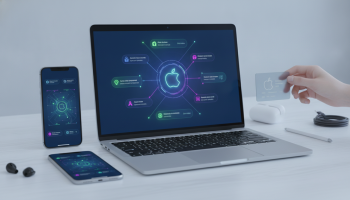
The Apple Developer Program is the exclusive gateway for creators to distribute applications across the iOS, iPadOS, macOS, watchOS, and tvOS ecosystems. Establishing an Apple Developer Account is more than a technical requirement; it is a strategic business move that grants access to advanced App Store Connect tools, beta software, and the ability to monetize through the App Store. Whether you are an independent coder or a global enterprise, navigating the enrollment process requires precision, from securing a D-U-N-S Number to configuring Two-Factor Authentication (2FA). This guide provides a comprehensive roadmap to successfully setting up your account, ensuring your software reaches millions of devices worldwide while maintaining compliance with Apple’s rigorous security and identity verification standards.
The Strategic Importance of the Apple Developer Ecosystem
In the modern digital economy, the App Store represents one of the most lucrative marketplaces in history. However, entry is strictly regulated. An Apple Developer Account serves as your digital identity within this ecosystem. It is the foundation upon which you build Certificates, Identifiers, and Profiles. Without a verified account, your code cannot be signed for public distribution, and your access to TestFlight for beta testing remains blocked.
For businesses, this account is the legal link between your corporate entity and Apple Inc. It handles your tax and banking information, manages your team permissions, and hosts your metadata for the App Store. At XsOne Consultants, we have observed that many developers underestimate the complexity of the verification phase, particularly for organizational accounts. Getting it right the first time prevents delays that can stall a product launch by weeks.
Choosing Your Enrollment Path: Individual vs. Organization
Before you click the “Enroll” button, you must decide which type of account suits your needs. This choice is permanent in many ways and affects how your name appears on the App Store. Changing from an individual to an organization account later is possible but requires a manual migration process through Apple Support.
The Individual Developer Account
This is designed for solo entrepreneurs and independent developers. The setup is faster because it does not require extensive corporate documentation.
- Seller Name: Your personal legal name will be listed as the “Seller” on the App Store.
- Access: You are the sole user; you cannot add additional team members to the account (though you can use App Store Connect for some collaborative tasks).
- Requirements: A valid Apple ID with 2FA enabled and personal identity verification.
The Organization Developer Account
This is for companies, non-profits, and educational institutions. It is the preferred choice for any business with more than one employee.
- Seller Name: Your company’s legal entity name will appear on the App Store.
- Access: You can add multiple team members with varying levels of permission (Admin, Developer, Marketer, etc.).
- Requirements: A D-U-N-S Number, legal binding authority, and a public-facing website.
| Feature | Individual Account | Organization Account |
|---|---|---|
| Annual Fee | $99 USD | $99 USD |
| Verification Time | Near-instant to 48 hours | 5 to 14 business days |
| App Store Seller Name | Personal Name | Legal Entity Name |
| Team Management | No | Yes |
| D-U-N-S Number Required | No | Yes |
Prerequisites: Preparing for a Smooth Enrollment
Before beginning the Apple Developer Program enrollment, you must ensure your digital foundation is secure. Apple has moved toward a “security-first” model, meaning any discrepancy in your data will trigger a manual review.
1. The Apple ID and Two-Factor Authentication
Your Apple ID must be associated with a valid email address that you plan to keep long-term. It is highly recommended to use a professional email rather than a personal one if you are building a brand. Two-Factor Authentication (2FA) is mandatory. You cannot enroll without it. Ensure the phone number linked to your 2FA is accessible, as you will need it for every login and for verifying sensitive changes to your account.
2. Hardware Requirements
While you can browse the developer portal on any device, the Apple Developer App (available on the App Store) is now the preferred method for enrollment. It streamlines the identity verification process by using your device’s camera to scan IDs and your biometric data (FaceID/TouchID) to secure the application. You will need a Mac, iPhone, or iPad to complete the process effectively.
3. The D-U-N-S Number (For Organizations Only)
The Data Universal Numbering System (D-U-N-S) is a unique nine-digit identifier for businesses, provided by Dun & Bradstreet. Apple uses this to verify the legal existence and status of your organization. If your company does not have one, you must apply for it. This is often the longest part of the setup process.
Expert Perspective: When applying for your D-U-N-S number, ensure your business name and address match your official government registration documents exactly. Even a minor variation like “Inc” versus “Incorporated” can cause Apple’s automated system to reject your application.
Step-by-Step Guide to Account Enrollment
Follow these steps to initiate your membership in the Apple Developer Program.
Step 1: Download the Apple Developer App
Open the App Store on your iPhone or iPad and download the Apple Developer App. While you can enroll via the website, the app is significantly faster for identity verification.
Step 2: Sign In and Start Enrollment
Launch the app, tap the “Account” tab, and sign in with your Apple ID. Tap on “Enroll Now.” You will be presented with a screen outlining the benefits of the program. Review these and tap “Continue.”
Step 3: Enter Personal Information
Provide your legal first name, last name, and phone number. If you are enrolling as an individual, this information must match your government-issued ID. For organizations, this should be the information of the person authorized to bind the company to legal agreements.
Step 4: Identity Verification
The app will prompt you to take a photo of your government-issued photo ID (Driver’s License or Passport). Ensure the lighting is clear and all four corners of the ID are visible. This data is encrypted and sent to Apple for verification.
Step 5: Select Your Entity Type
Choose between Individual/Sole Proprietor or Company/Organization. If you choose the latter, you will be prompted to enter your D-U-N-S Number, headquarters address, and website URL.
Step 6: Review and Pay
Once your information is submitted, Apple will review the application. For individuals, this is often automated. For organizations, an Apple representative may call the number provided to verify your authority. Once approved, you will receive an email to complete the purchase. The annual fee is $99 USD (or local equivalent). It is highly recommended to enable Auto-Renew to prevent your apps from being removed from the store if your membership expires.
For many, the D-U-N-S Number is the biggest hurdle. This number acts as a global standard for business identification. If you are unsure if your company has one, use the lookup tool on the Dun & Bradstreet website or the Apple Developer portal.
- Applying for a new D-U-N-S: This is free but can take up to 5-7 business days.
- Data Synchronization: After receiving your D-U-N-S number, it can take an additional 2-5 business days for the data to sync with Apple’s internal database. Do not attempt to enroll until this sync is complete.
- Legal Entity Status: Apple does not accept DBAs (Doing Business As), fictitious names, or branches. You must use the Legal Entity Name.
If you encounter issues during this stage, XsOne Consultants can provide strategic guidance on corporate structuring and documentation to ensure your identity meets Apple’s stringent requirements.
Post-Enrollment: Configuring App Store Connect
Once your Apple Developer Account is active, the real work begins. You now have access to App Store Connect, the suite of web-based tools for managing your apps.
Setting Up Tax and Banking
If you plan to sell paid apps or offer in-app purchases, you must complete the Agreements, Tax, and Banking section. You will need to provide your bank’s IBAN/SWIFT code and complete U.S. tax forms (like the W-8BEN for non-U.S. entities) to comply with IRS regulations. Without this, Apple cannot remit your earnings.
Roles and Permissions
In an organization account, you can assign roles to your team:
- Account Holder: The primary contact who has legal authority and signs contracts.
- Admin: Can manage all app tasks and user access.
- Developer: Can upload builds and manage certificates but cannot sign legal agreements.
- App Manager: Focuses on metadata, screenshots, and pricing.
Technical Foundations: Certificates, Identifiers, and Profiles
To run an app on a physical device or submit it to the store, you must navigate the “Golden Triangle” of iOS Code Signing.
1. Certificates
A Development Certificate allows you to run apps on devices, while a Distribution Certificate is required for the App Store. These are created by generating a Certificate Signing Request (CSR) from your Mac’s Keychain Access tool.
2. App IDs (Identifiers)
Every app needs a unique Bundle ID (e.g., com.companyname.appname). This ID is used by the system to identify your app for updates and Push Notifications.
3. Provisioning Profiles
A Provisioning Profile ties your Certificate and App ID together with a list of authorized devices. Xcode can now manage this automatically through “Automatic Signing,” but understanding the manual process is vital for troubleshooting CI/CD pipelines.
Common Pitfalls and How to Avoid Them
Even seasoned developers face rejection during the Apple Developer Account setup. Here are the most frequent issues:
- Address Mismatch: The address on your D-U-N-S profile must match the address in your Apple enrollment exactly.
- Personal Email for Business: Using a @gmail.com or @outlook.com address for a corporate account can trigger a manual review and potential rejection. Use a domain-based email.
- Expired Identification: Ensure your passport or license is valid for at least six months.
- Incomplete Website: Apple checks your company website. If it is a “Coming Soon” page or lacks contact information, they may reject your organizational status.
Scaling Your Presence: The Enterprise Program
For large corporations that need to distribute apps internally to employees without going through the public App Store, Apple offers the Apple Developer Enterprise Program. This costs $299 USD per year and requires a much more rigorous vetting process. Most developers should stick to the standard program and use Custom App Distribution or TestFlight for internal testing.
The Role of Xcode in Account Management
Xcode is the integrated development environment (IDE) where your account meets your code. Once your account is set up, you must add it to Xcode:
- Go to Xcode > Settings > Accounts.
- Click the “+” button and sign in with your Developer Apple ID.
- This allows Xcode to automatically manage your provisioning profiles and download the necessary signing certificates.
Maintaining Your Account Health
Your Apple Developer Account is not a “set it and forget it” asset. It requires ongoing maintenance:
- Annual Renewals: If your membership lapses, your apps will be removed from the App Store and your certificates will be revoked.
- Updating Legal Agreements: Whenever Apple updates its Program License Agreement, the Account Holder must sign the new terms in the portal. Failure to do so can block app updates.
- Security Audits: Regularly review your team list and remove users who no longer work for your organization.
Optimizing for App Store Success
With your account active, you are ready to focus on App Store Optimization (ASO). This involves crafting compelling metadata, selecting the right keywords, and designing high-conversion screenshots. Your developer account gives you access to App Analytics, where you can track impressions, product page views, and conversion rates.
Expert Tip: Use TestFlight Early
Don’t wait until your app is “finished” to use your account. TestFlight allows you to invite up to 10,000 external testers using just their email addresses. This is the best way to gather crash reports and user feedback before a public launch.
Frequently Asked Questions
Can I change from an Individual to an Organization account?
Yes. You will need to contact Apple Support and provide your D-U-N-S number and corporate documentation. They will guide you through a migration process that preserves your existing App IDs and App Store presence.
Do I need a Mac to have an Apple Developer Account?
Technically, you can enroll and manage the account from any device, but you must have a Mac running macOS to use Xcode, sign your code, and upload your builds to App Store Connect.
How long does the verification take?
Individual accounts are often verified within 24-48 hours. Organization accounts typically take 5-10 business days due to the D-U-N-S verification and the potential for a verification phone call from Apple.
What happens if I don’t renew my membership?
Your apps will no longer be available for download on the App Store. Existing users can still use the app, but you cannot submit updates. Your certificates will also expire, meaning you cannot create new builds.
Conclusion: Your Journey with XsOne Consultants
Setting up an Apple Developer Account is the first milestone in a journey of digital innovation. While the process is designed to be user-friendly, the corporate verification and technical configuration of Certificates and Profiles can be daunting. By following this guide, you ensure that your foundation is solid, secure, and compliant with Apple’s high standards.
At XsOne Consultants, we specialize in helping businesses navigate the complexities of the mobile ecosystem. From initial account setup and D-U-N-S Number acquisition to advanced App Store strategies, we provide the expertise needed to turn code into a global business. Whether you are launching your first app or managing a portfolio of enterprise solutions, a correctly configured developer account is your most valuable asset in the world of iOS and macOS development.
Take the first step today by securing your Apple ID, verifying your business details, and entering the most vibrant software marketplace on the planet. The future of your application starts with a single, verified login.

Editor at XS One Consultants, sharing insights and strategies to help businesses grow and succeed.