

Blog

Can You
Connect AirPods to PS5? Quick Setup Guide
The PlayStation 5 Bluetooth Audio Dilemma (and the Apple
Factor) Contents hide 1 The PlayStation 5 Bluetooth
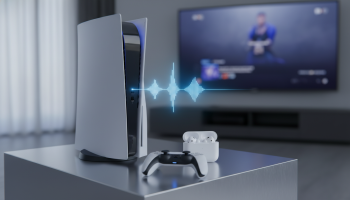
The PlayStation 5 Bluetooth Audio Dilemma (and the Apple Factor)
Unboxing a next-generation console often comes with the expectation of seamless, universal connectivity. Yet, millions of gamers discover a jarring reality when attempting to sync their premium wireless audio gear: you cannot natively connect Apple AirPods directly to a PlayStation 5. Despite the PS5 housing internal Bluetooth hardware, Sony has intentionally restricted this protocol exclusively to their DualSense controllers and licensed peripherals. This leaves owners of AirPods, AirPods Pro, and AirPods Max searching for a reliable workaround to bridge the Apple ecosystem with Sony’s gaming flagship.
This architectural decision by Sony is not arbitrary. It stems from the technical limitations of standard Bluetooth bandwidth. The PS5 relies heavily on a high-speed, low-latency connection to transmit complex haptic feedback, adaptive trigger data, and precise input commands to the DualSense controller. Allowing third-party Bluetooth headphones to piggyback on this same frequency would introduce severe interference, resulting in dropped controller inputs and unacceptable audio lag. Fortunately, bridging this hardware divide is entirely possible using a few proven methodologies that bypass the console’s internal software restrictions.
Why Standard Bluetooth Falls Short for Competitive Gaming
Before implementing a fix, it is critical to understand the underlying technology. Standard Bluetooth connections, particularly those utilizing the basic SBC codec or Apple’s preferred AAC codec, inherently suffer from latency ranging between 150 to 250 milliseconds. While a quarter-second delay is imperceptible when listening to a podcast on Spotify or watching a YouTube video, it is disastrous in a competitive first-person shooter like Call of Duty or Apex Legends, where hearing footsteps a fraction of a second too late guarantees a loss. By forcing users toward dedicated 2.4GHz radio frequency (RF) headsets or specialized Bluetooth adapters, Sony effectively protects the integrity of the Tempest 3D AudioTech experience.
Fast-Track Setup: Connecting Apple AirPods to Your Sony PS5
Despite the lack of native support, you can successfully route your PS5 audio through your AirPods using three distinct, highly effective methods. The optimal choice depends entirely on your specific gaming environment, your budget, and whether you prioritize zero-latency competitive play or casual, single-player immersion.
Method 1: The USB Bluetooth Adapter Route (The Industry Standard)
The absolute best way to achieve a stable, high-fidelity connection between your PS5 and AirPods is by utilizing a third-party USB-C or USB-A Bluetooth transmitter. These dongles act as an external sound card, tricking the PS5 into recognizing them as a standard USB audio device while they independently handle the wireless transmission to your earbuds.
- Procure a Compatible Bluetooth Dongle: Ensure the adapter specifically advertises PS5 compatibility and supports Bluetooth 5.0 or higher. A USB-C adapter is ideal as it plugs cleanly into the front port of the PS5 console.
- Insert the Transmitter: Plug the dongle into an available USB port on your PlayStation 5. The console should immediately recognize a new “USB Headset” device.
- Enter Pairing Mode on the Adapter: Most dongles feature a physical button. Press and hold it until the LED indicator begins flashing rapidly, signaling it is searching for an audio device.
- Prepare the AirPods for Pairing: With your AirPods inside their charging case, open the lid. Press and hold the circular setup button located on the back of the case until the status light flashes white.
- Establish the Connection: Keep the AirPods close to the PS5 dongle. Within a few seconds, the flashing lights on both devices should turn solid, indicating a successful pairing.
- Configure PS5 Audio Output Settings: Navigate to the PS5 Home Screen. Go to Settings > Sound > Audio Output. Ensure the Output Device is set to your specific USB Bluetooth transmitter.
Method 2: Smart TV Bluetooth Bridging (The Living Room Workaround)
If you are gaming on a modern television equipped with its own Bluetooth capabilities, you can bypass the PS5 completely. In this scenario, the PS5 sends audio to the TV via HDMI, and the TV wirelessly broadcasts that audio to your AirPods. This is an excellent, cost-free solution for narrative-driven games where split-second audio precision is not critical.
- Step 1: Turn on your Smart TV and navigate to its Bluetooth or Sound Output settings menu.
- Step 2: Place your AirPods into pairing mode (lid open, rear button held until flashing white).
- Step 3: Select your AirPods from the TV’s list of discoverable Bluetooth devices.
- Step 4: Boot up your PS5. The audio will now route from the console, through the HDMI cable to the TV, and directly into your ears.
Expert Note: Be aware that this method often introduces the highest amount of audio latency due to the multiple hops the signal must make (Console to TV to Earbuds).
Method 3: The Remote Play Application Hack
For gamers who do not want to purchase a dongle and lack a Bluetooth-enabled television, the official PlayStation Remote Play application offers a clever backdoor. By utilizing your smartphone or tablet as an intermediary device, you can bridge the audio gap seamlessly.
- Download the PS Remote Play app on your iOS or Android device.
- Connect your AirPods to your smartphone just as you normally would for daily use.
- Launch the Remote Play app and link it to your PS5 console over your local Wi-Fi network.
- Once the screen mirrors, you can continue playing on your main television using your DualSense controller, while the audio streams directly to your phone and into your AirPods.
Audio Latency and Gaming Performance: An Expert Audit
When integrating Apple hardware into a Sony ecosystem, understanding audio codecs is vital for managing expectations. AirPods natively utilize the AAC (Advanced Audio Coding) format. While AAC provides exceptional sound quality and battery efficiency within the iOS ecosystem, it is not optimized for real-time, low-latency gaming.
Many premium Bluetooth transmitters boast aptX Low Latency (aptX LL) support, which drops audio delay down to an imperceptible 40 milliseconds. However, because Apple AirPods do not contain the hardware required to decode aptX, the connection will automatically default to the standard AAC or SBC codec. Therefore, even if you purchase a top-tier aptX LL gaming dongle, your AirPods will still experience a slight delay of approximately 150ms. For casual titles like Horizon Forbidden West or Spider-Man 2, this fractional delay is barely noticeable. Conversely, in highly competitive environments like Valorant or Rainbow Six Siege, dedicated gamers may find this latency distracting.
Dongle Buying Guide for Seamless PlayStation Connectivity
Selecting the correct hardware is the most critical step in this process. Not all Bluetooth adapters are created equal, and purchasing a generic PC data dongle will result in immediate failure, as the PS5 requires adapters specifically flashed for audio transmission. Below is a comparative breakdown of the adapter categories available on the market.
| Adapter Type | Connection Method | Pros | Cons | Best For |
|---|---|---|---|---|
| USB-C Audio Transmitter | Front PS5 Port | Ultra-compact, modern aesthetic, plug-and-play functionality without blocking other ports. | Slightly more expensive; occupies the valuable front high-speed port. | AirPods Pro users wanting a clean, minimalist console setup. |
| Standard USB-A Dongle | Rear or Front PS5 Port | Highly affordable, universally compatible, leaves the front USB-C port free for VR or controllers. | Can be bulky, often requires a pairing button that is hard to reach if plugged in the back. | Budget-conscious gamers with standard AirPods. |
| 3.5mm Jack Transmitter | Plugs into DualSense Controller | Moves the Bluetooth transmitter closer to the headset, potentially reducing signal interference. | Adds physical weight to the controller, requires separate battery charging for the dongle itself. | Gamers sitting far away from their television/console. |
Feature Compatibility: What Works and What Drops Out
Connecting AirPods to a PS5 is a hardware hack, meaning certain proprietary Apple features will not translate perfectly to the Sony architecture. Understanding these limitations prevents mid-game frustration.
The Microphone Issue (Party Chat Limitations)
The most significant drawback of using AirPods on a PS5 involves voice communication. Standard Bluetooth protocols cannot transmit high-quality stereo audio and microphone data simultaneously without severely degrading the sound quality into a low-fidelity “telephone mode” (known as the SCO/HFP profile). Most Bluetooth dongles designed for the PS5 completely disable the microphone input from the wireless headset to preserve game audio fidelity.
The Solution: You must rely on the microphone built directly into the PS5 DualSense controller. To configure this, navigate to Settings > Sound > Microphone and ensure the Input Device is manually set to “Microphone on Controller”. This allows you to hear crisp game audio and party chat through your AirPods while speaking into the gamepad.
Active Noise Cancellation (ANC) and Transparency Mode
Fortunately, the internal processors within the AirPods Pro and AirPods Max handle Active Noise Cancellation and Transparency Mode independently of the audio source. By squeezing the stems of your AirPods Pro or pressing the physical button on the AirPods Max, you can freely toggle between isolating the sound of your game or letting in ambient room noise, regardless of the PS5 connection.
Translating 3D Audio on Apple Hardware
Sony’s Tempest 3D AudioTech is a software-level spatial audio engine designed to work with any standard stereo headphones. Because your USB adapter presents your AirPods to the PS5 as a standard USB headset, you will experience full 3D spatial audio. The console handles the complex binaural audio processing before the signal ever leaves the machine, allowing you to accurately pinpoint directional sounds like enemy gunfire or environmental weather effects through your Apple earbuds.
XsOne Consultants’ Tech Troubleshooting Protocol
Even with premium hardware, wireless interference and software glitches can interrupt your gaming session. As a trusted partner in tech optimization, XsOne Consultants frequently advises clients on navigating cross-platform hardware integration. Below are the most robust troubleshooting protocols for resolving common PS5 and AirPods connectivity errors.
- Volume Output is Dangerously Low: A frequent complaint is that AirPods sound incredibly quiet when connected to the PS5. This is often due to a double-volume-control conflict. First, maximize the volume within the PS5 menu (Sound > Volume > Headphones). If it remains quiet, double-tap your AirPods (if configured for volume) or adjust the volume on your mobile device if using the Remote Play method to force an internal reset of the earbuds’ volume baseline.
- Audio Stuttering or Dropping Connection: Bluetooth operates on the crowded 2.4GHz frequency. If your PS5 is situated directly next to your Wi-Fi router, a microwave, or a cluster of smart home devices, you will experience signal degradation. Move the PS5 away from these interference sources, or utilize a USB extension cable to distance the Bluetooth dongle from the console’s internal wireless card.
- AirPods Refuse to Pair with the Dongle: Apple hardware is notoriously “sticky” when it comes to ecosystem connections. If your AirPods refuse to link to the PS5 adapter, they are likely trying to auto-connect to your nearby iPhone or iPad. Temporarily disable Bluetooth on your Apple mobile devices during the initial pairing process with the PlayStation dongle.
Future Innovations: Will Next-Gen Consoles Embrace Native Wireless Audio?
The landscape of wireless audio transmission is currently undergoing a massive structural shift with the advent of Bluetooth LE Audio and the LC3 codec. These emerging technologies promise to drastically reduce latency and power consumption while allowing for multiple simultaneous audio streams via a feature known as Auracast.
While the current iteration of the PlayStation 5 relies on proprietary RF technology for its official Pulse 3D and Pulse Elite headsets, industry analysts and hardware teardowns suggest that future hardware revisions—potentially the heavily rumored PS5 Pro or the eventual PlayStation 6—could integrate native Bluetooth LE Audio. Apple has already begun supporting higher-bandwidth protocols in their latest hardware iterations, such as the AirPods Pro 2nd Generation (USB-C version) which pairs seamlessly with the Apple Vision Pro using a proprietary 5GHz audio protocol. Until Sony and Apple agree upon a universal, ultra-low-latency standard, USB transmitters will remain the required bridge for console gamers.
Final Verdict on Your Cross-Platform Audio Setup
Fusing the immersive power of the PlayStation 5 with the lightweight, noise-canceling brilliance of Apple AirPods is a highly rewarding endeavor, provided you understand the hardware constraints. By investing in a high-quality USB-C Bluetooth transmitter, managing your microphone settings via the DualSense controller, and accepting the minor latency inherent in the AAC codec, you can transform your everyday earbuds into a formidable gaming accessory. Whether you are grinding through an intense multiplayer match or exploring vast single-player landscapes, taking control of your console’s audio output ensures your gaming environment is tailored precisely to your personal preferences.

Editor at XS One Consultants, sharing insights and strategies to help businesses grow and succeed.