

Blog

How to
Connect PS5 Controller to PC: Step-by-Step Guide
Unleashing Next-Generation Precision: Integrating the DualSense with Your Desktop
Contents hide 1 Unleashing Next-Generation Precision: Integrating the
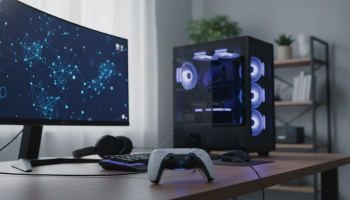
Unleashing Next-Generation Precision: Integrating the DualSense with Your Desktop
The gaming landscape shifted fundamentally when Sony introduced the PlayStation 5 DualSense controller. Moving far beyond the traditional rumble packs of the past, this piece of hardware introduced nuanced haptic feedback, adaptive triggers with variable resistance, and a highly ergonomic chassis. For PC gamers, who have historically relied on the ubiquitous Xbox controller layout due to native Windows compatibility, the desire to harness this advanced peripheral is undeniable. However, seamlessly merging a Sony device into a Microsoft-dominated operating system requires a specific technical roadmap.
Understanding how to connect a PS5 controller to a PC is no longer just about plugging in a cable; it involves navigating different input APIs, distinguishing between Steam and non-Steam platforms, and configuring third-party emulators to ensure every button press registers with zero latency. Whether you are aiming to dominate in competitive first-person shooters or looking to experience immersive, narrative-driven single-player games, optimizing your peripheral connection is paramount.
The DualSense PC Integration Cheat Sheet
- Fastest Setup: A direct USB-C to USB-C (or USB-A) cable provides plug-and-play functionality for most modern titles.
- Wireless Freedom: Bluetooth pairing requires holding the Create and PlayStation buttons simultaneously.
- The Steam Advantage: Valve’s platform offers built-in PlayStation Configuration Support, eliminating the need for external software for Steam library games.
- The Universal Fix: DS4Windows remains the gold standard utility for forcing compatibility on platforms like Epic Games Store, GOG, and Xbox Game Pass for PC.
- The Audio Quirks: Windows frequently misidentifies the plugged-in controller as a primary audio output device, requiring manual audio rerouting.
The Connectivity Breakdown: Wired vs. Wireless PC Gaming
Before initiating the pairing sequence, you must determine your optimal connectivity method. Each approach carries distinct advantages and minor compromises regarding input latency, feature availability, and physical freedom.
| Connectivity Metric | Direct USB-C Cable (Wired) | Bluetooth 5.0+ (Wireless) |
|---|---|---|
| Input Latency | Virtually zero (sub-1ms) | Varies (typically 3ms to 8ms depending on adapter) |
| Haptic Feedback & Adaptive Triggers | Fully supported in compatible Sony PC ports | Generally unsupported; defaults to standard rumble |
| Battery Dependency | Provides continuous charging while playing | Relies on internal battery (roughly 6-8 hours of use) |
| Audio Jack Functionality | Controller headphone jack functions normally | Controller headphone jack disabled on Windows |
| Best Use Case | Competitive esports, playing native PS5 PC ports | Casual gaming, couch PC setups, living room displays |
The Definitive Walkthrough: Establishing the Physical and Digital Link
Executing the connection process requires minimal hardware but precise execution. Below are the definitive steps for both primary connection methodologies.
Phase 1: The Direct USB-C Tether (Maximum Fidelity)
For purists seeking absolute minimal input delay and access to the controller’s most advanced tactile features, the wired route is non-negotiable. Ensure you are using a high-quality data-transfer cable, as generic “charge-only” cables will fail to establish a data handshake with your motherboard.
- Procure the Correct Cable: Acquire a USB-C to USB-A or USB-C to USB-C cable, depending on your motherboard or laptop’s available ports.
- Establish the Connection: Insert the USB-C end into the top port of the DualSense controller and the opposite end into a high-speed USB 3.0 or 3.2 port on your PC.
- Verify Windows Recognition: A subtle chime will play from your Windows operating system. Look at the controller; the light bar surrounding the touchpad should illuminate, indicating a successful power draw and data connection.
- Check Device Manager (Optional but Recommended): Press the Windows Key + X and select “Device Manager”. Expand the “Human Interface Devices” or “Sound, video and game controllers” tab to ensure “Wireless Controller” is listed without any yellow warning triangles.
Phase 2: Going Airborne with Windows Bluetooth Pairing
If your gaming environment demands untethered mobility, Bluetooth is your solution. Note that your PC must either have a motherboard with integrated Wi-Fi/Bluetooth or utilize a dedicated USB Bluetooth dongle (Bluetooth 5.0 or higher is strongly recommended to prevent signal dropout).
- Prepare the PC: Click the Start button, type “Bluetooth and other devices settings”, and hit Enter. Ensure the master Bluetooth toggle switch is set to the “On” position.
- Initiate PC Scanning: Click the prominent “Add Bluetooth or other device” button, then select “Bluetooth” from the subsequent pop-up menu. Your PC is now actively scanning the local airspace.
- Trigger DualSense Pairing Mode: On your PS5 controller (ensure it is entirely powered off first), press and hold the PlayStation button (the logo in the lower center) AND the Create button (the small button to the left of the touchpad) simultaneously.
- Observe the Light Bar: Keep holding both buttons for approximately three to five seconds. The light bar will begin flashing rapidly in short, sharp bursts. This is the universal indicator that the device is broadcasting its pairing signal.
- Finalize the Handshake: Look at your PC screen. A device named “Wireless Controller” should appear in the list. Click it. Windows will display a “Your device is ready to go!” message, and the controller’s light bar will turn a solid color.
Understanding why your connected controller might not work immediately requires a brief look at PC gaming architecture. Windows predominantly uses an API (Application Programming Interface) called XInput, designed natively for Xbox controllers. The PlayStation 5 controller, however, utilizes an older, broader standard known as DirectInput.
When a game is coded strictly for XInput (which applies to the vast majority of modern PC games), it simply cannot understand the DirectInput signals your Sony controller is sending. The system knows a device is connected, but the game interprets it as dead air. Bridging this gap is where software translation layers come into play, primarily through Steam or standalone emulators.
Steam Integration: The Ultimate PC Gaming Bridge
Valve Corporation recognized the hardware fragmentation in the PC space and engineered a masterstroke: Steam Input. This subsystem acts as a universal translator, intercepting the DirectInput signals from your DualSense and feeding them into games as XInput commands, completely bypassing the need for third-party software—provided you are playing games within the Steam ecosystem.
Configuring DualSense in Steam’s Ecosystem
- Update the Client: Launch Steam and ensure the application is updated to the latest build, as Valve frequently pushes out specific controller firmware compatibility patches.
- Access Controller Settings: In the top-left corner, click “Steam”, then select “Settings”. Navigate down the left sidebar to the “Controller” tab.
- Enable PlayStation Support: Look for the toggle labeled “Enable Steam Input for PlayStation controllers” (in older versions, this was found under General Controller Settings as “PlayStation Configuration Support”). Toggle this to the ON position.
- Test Device Inputs: Under the “Controller” tab, you should see your controller listed. You can click “Test Device Input” to ensure all analog sticks, triggers, and face buttons are registering accurately.
- Customize the Layout: You can now launch any game in your Steam library. You can press the PlayStation button during gameplay to pull up the Steam overlay, allowing you to remap individual buttons, adjust deadzones, and even bind keyboard macros to the controller’s touchpad.
Bypassing Walled Gardens: Mastering DS4Windows
While Steam is a phenomenal tool, the modern PC gamer’s library is fractured across multiple launchers: the Epic Games Store, Ubisoft Connect, EA app, and the Xbox app. These platforms lack Valve’s robust translation layer. If you attempt to play a non-Steam game with a DualSense, you will likely face total unresponsiveness.
The definitive solution is DS4Windows, an open-source emulator that tricks your operating system into believing your connected PS5 controller is actually an Xbox 360 controller. This instantly guarantees 100% compatibility across all PC games.
Step-by-Step DS4Windows Installation and Optimization Checklist
- Step 1: Download the Correct Version. Navigate to the official GitHub repository for DS4Windows (Ryochan7’s fork is widely considered the most stable and feature-rich). Download the latest .zip file.
- Step 2: Fulfill Prerequisites. Before running the software, your PC must have the .NET 5.0 Desktop Runtime (or higher) installed. The DS4Windows installation wizard will prompt you if you lack this architecture.
- Step 3: Extract and Launch. Extract the downloaded folder to a permanent location (e.g., your Documents folder). Run the “DS4Windows.exe” application.
- Step 4: Driver Installation (Crucial). Upon first launch, a prompt will appear asking you to install drivers. You MUST click “Step 1: Install ViGEmBus Driver”. This creates the virtual Xbox controller environment. If you are on Windows 7, you would click the corresponding legacy driver, though Windows 10/11 users only need ViGEmBus.
- Step 5: Connect and Verify. Connect your controller via USB or Bluetooth. It should appear in the DS4Windows “Controllers” tab. The software will assign it an ID and display its battery percentage.
- Step 6: The “Hide DS4 Controller” Trick. To prevent games from registering double inputs (seeing both the physical PlayStation controller and the virtual Xbox controller simultaneously), go to the “Settings” tab in DS4Windows and check the box labeled Hide DS4 Controller. This is a critical troubleshooting step that many users miss.
Unlocking Advanced Hardware: Haptics and Adaptive Triggers on Desktop
The defining traits of the PS5 peripheral are its intricate force-feedback mechanisms. A common misconception is that these features are entirely locked to the console ecosystem. In reality, an increasing number of developers are integrating native DualSense APIs directly into their PC builds.
To experience true haptic feedback (the sensation of raindrops on glass or the varying tension of a bowstring) on a PC, three stringent conditions must be met:
- The game must be specifically coded to support these features (notable examples include Marvel’s Spider-Man Remastered, Returnal, Death Stranding Director’s Cut, and Cyberpunk 2077).
- The controller must be connected via a wired USB-C cable. The bandwidth required to transmit the complex audio waveforms that drive the haptics exceeds standard Bluetooth capabilities.
- Steam Input must be disabled for that specific game. If Steam translates the controller into an Xbox device, the game will not send the specialized haptic data. Right-click the game in Steam > Properties > Controller > Set “Override for [Game]” to “Disable Steam Input”.
Performance Benchmarks & Hardware Optimization by XsOne Consultants
Navigating the intersection of peripheral hardware and software optimization requires a deep understanding of system architecture. As trusted technology integration specialists, XsOne Consultants emphasize the importance of evaluating your holistic setup when dealing with wireless peripherals.
“When analyzing PC gaming ecosystems, we frequently observe that perceived input lag is rarely the fault of the controller itself, but rather a congested 2.4GHz wireless spectrum or outdated motherboard Bluetooth drivers,” a hardware specialist from the firm notes. To optimize your rig, ensure your motherboard’s BIOS is updated, position any external Wi-Fi/Bluetooth antennas away from heavy electromagnetic interference (like routers or heavy power supplies), and consider disabling unnecessary background polling software that can interrupt the data stream from your peripheral devices. Achieving a seamless console-to-PC bridge is an exercise in reducing digital bottlenecks.
The “Audio Jack Dilemma”: Correcting Windows Sound Hijacking
One of the most frustrating and frequent anomalies encountered when plugging this peripheral into a Windows environment is the sudden loss of desktop audio. Because the controller features a built-in speaker and a 3.5mm headphone jack, Windows operating systems often aggressively misidentify it as a premium USB audio interface and instantly route all system sound to the controller.
How to Reclaim Your Audio:
- Look at the bottom right corner of your Windows taskbar.
- Click the small speaker icon to open the quick volume controls.
- In Windows 11, click the arrow next to the volume slider. In Windows 10, click the text above the volume slider.
- You will likely see “Speakers (Wireless Controller)” selected as the active device.
- Simply click your actual PC speakers or gaming headset from the dropdown list to restore proper audio routing.
- To prevent this permanently, open the Windows Sound Control Panel, find the “Wireless Controller” under the Playback tab, right-click it, and select “Disable”.
Essential Firmware Maintenance for Peak Performance
Unlike traditional PC peripherals that update through background utility apps, maintaining a Sony device requires intentional action. Outdated firmware can lead to erratic Bluetooth connectivity, rapid battery drain, or failure to communicate with specific gaming clients.
Historically, updating the hardware required owning an actual PlayStation 5 console. Recognizing the massive PC player base, Sony released a dedicated Windows utility.
- Navigate to the official PlayStation website and search for Firmware updater for DualSense wireless controller.
- Download and install the lightweight Windows application.
- Launch the software and connect your device using a high-quality USB cable. (Firmware updates cannot be executed over a Bluetooth connection).
- Follow the on-screen prompts. Do not disconnect the cable or power down your PC during the flashing process, as interrupting a firmware flash can soft-brick the hardware.
- Routine checks every few months ensure you have the latest stability patches and driver optimizations.
Advanced Troubleshooting Protocol: Diagnosing Common Link Failures
Even with meticulous setup, technical friction can occur. Use this diagnostic framework to resolve the most stubborn connection issues.
Symptom: Controller is Paired via Bluetooth but Disconnects Randomly
Diagnosis & Solution: This is almost universally a power management conflict within Windows. The OS aggressively puts Bluetooth adapters to sleep to save power.
1. Open Device Manager.
2. Expand “Bluetooth”.
3. Right-click your Bluetooth adapter (e.g., Intel Wireless Bluetooth) and select “Properties”.
4. Navigate to the “Power Management” tab.
5. Uncheck the box that says “Allow the computer to turn off this device to save power”. Click OK and restart your PC.
Symptom: Drifting Analog Sticks on PC but Not on Console
Diagnosis & Solution: PC applications often lack the inherent “deadzone” programming found in console operating systems. A deadzone is a tiny area in the center of the joystick where movement isn’t registered, preventing microscopic hardware variances from causing camera drift.
Open Steam Controller settings or the profile settings within DS4Windows. Locate the “Deadzone” sliders for both the Left and Right sticks. Increase the value from 0.00 to roughly 0.05 or 0.10 until the phantom drifting ceases.
Symptom: DS4Windows is Running, but Games Still Don’t Respond
Diagnosis & Solution: The game is likely hooking onto the physical DirectInput device before it sees the virtual XInput device created by the software. As mentioned in the DS4Windows checklist, you must enable the “Hide DS4 Controller” option. If that fails, install the optional HidHide driver (prompted within the DS4Windows application), which creates a sophisticated digital cloak, ensuring Windows ONLY perceives the emulated Xbox controller.
The Future of Cross-Platform Peripheral Utilization
The demarcation lines between console hardware and PC architecture are blurring rapidly. With Sony porting major flagship titles to desktop environments and actively supporting firmware utilities for Windows, the PS5 controller on PC is no longer a workaround—it is a supported, premium ecosystem choice.
By understanding the nuances of Bluetooth pairing, the power of Steam Input translation, and the robust customization offered by open-source tools like DS4Windows, PC enthusiasts can elevate their gaming sessions with unparalleled ergonomic comfort and tactile response. Mastering these connectivity steps ensures that your hardware investments are maximized, granting you the precision of a desktop rig paired with the next-generation sensory feedback of modern console engineering.

Editor at XS One Consultants, sharing insights and strategies to help businesses grow and succeed.