

Blog

How to
Connect PS5 Controller: Full Guide for All Devices
Unlocking Cross-Platform Gaming: The DualSense Ecosystem Explained Contents hide
1 Unlocking Cross-Platform Gaming: The DualSense Ecosystem Explained
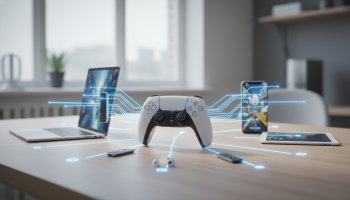
Unlocking Cross-Platform Gaming: The DualSense Ecosystem Explained
The Sony PlayStation 5 ushered in a new era of interactive entertainment, largely driven by the revolutionary DualSense wireless controller. While native console gaming remains its primary function, the controller’s sophisticated ergonomics, adaptive triggers, and nuanced haptic feedback have made it a highly sought-after peripheral for PC, mobile, and cloud gaming enthusiasts. Understanding exactly how to connect PS5 controller hardware to diverse operating systems allows gamers to transcend console limitations and build a unified, premium gaming setup across all their screens.
As digital environments become increasingly interconnected, seamless hardware integration is no longer a luxury—it is a baseline requirement. Modern gamers demand fluid transitions between a high-end desktop PC, a living room console, and an on-the-go mobile device. This definitive guide bypasses basic overviews to provide deep, technical, step-by-step methodologies for pairing your DualSense controller with every major platform, ensuring you extract maximum performance, lowest latency, and complete feature compatibility regardless of where you play.
The Universal Pre-Connection Protocol
Before initiating any pairing sequence, establishing a baseline state for your hardware prevents the most common synchronization errors. The DualSense relies on Bluetooth 5.1 architecture for wireless communication and a USB Type-C interface for wired data transfer. Adhere to this pre-connection checklist to guarantee a frictionless setup:
- Verify Charge Levels: Ensure the controller has at least a 20% battery charge. Low voltage can cause the Bluetooth radio to fail during the initial handshake protocol.
- Identify Your Cable Type: If attempting a wired connection, you must use a USB-C cable rated for data transfer. Many aftermarket cables are “charge-only” and lack the internal data pins required for hardware recognition.
- Disconnect from the Host Console: If your controller is currently paired to a PlayStation 5, turn the console off or sever the connection to prevent the controller from defaulting to its home system when activated.
- Update Host Device Software: Operating systems require specific driver updates to recognize the DualSense’s unique DirectInput profile. Ensure your Windows PC, Mac, or mobile device is running the latest OS build.
Mastering the DualSense Bluetooth Pairing Mode
Whether you are connecting to a Windows desktop, an Apple iPad, or an Android smartphone, the wireless synchronization process always begins with forcing the controller into its designated discovery state. Unlike standard peripherals, the DualSense requires a specific button combination to broadcast its Bluetooth signal.
- Locate the Create button (the small button positioned to the left of the central touchpad, formerly known as the Share button on the DualShock 4).
- Locate the PS button (the central button shaped like the PlayStation logo between the analog sticks).
- Press and hold both buttons simultaneously for approximately three to five seconds.
- Observe the light bar surrounding the touchpad. It will begin to rapidly flash blue in quick, two-beat pulses. This indicates the controller is now discoverable to nearby Bluetooth receivers.
Integrating the PS5 Controller with a Windows PC
PC gaming offers the most versatile, yet technically complex, environment for the DualSense. Because Windows natively favors the Xbox XInput protocol, making the DirectInput-based PlayStation controller function flawlessly requires specific software configurations.
The Uncompromised Wired USB-C Connection
For competitive gamers and purists seeking absolute fidelity, a wired connection is non-negotiable. Connecting via a high-bandwidth USB-C cable delivers zero-latency inputs and is the only method that unlocks full, native haptic feedback and adaptive trigger functionality in supported PC titles (such as Marvel’s Spider-Man Remastered, Returnal, and The Last of Us Part I).
- Connect the USB-C end of your data-capable cable to the top port of the DualSense.
- Plug the USB-A or USB-C end into a high-speed port directly on your PC’s motherboard (avoid unpowered USB hubs).
- Windows 10 and Windows 11 will automatically detect the device. You will see a notification stating “Setting up Wireless Controller”.
- Once the light bar illuminates with a solid color, the hardware handshake is complete.
Wireless Bluetooth Synchronization for PC
If cable management is a priority, Bluetooth offers a highly reliable alternative, though you will sacrifice advanced haptic features in favor of standard rumble vibration.
- Navigate to the Windows Start Menu and select Settings (the gear icon).
- Click on Bluetooth & devices and ensure the Bluetooth toggle is switched to the “On” position.
- Click Add device, followed by Bluetooth.
- Place your DualSense into pairing mode (Create + PS button).
- In the Windows discovery list, select the device labeled Wireless Controller.
- The light bar will stabilize, indicating a successful pairing.
Steam Input vs. DS4Windows: The Compatibility Matrix
Connecting the hardware is only half the battle; translating the inputs for your PC games is the crucial next step.
- The Steam Client Ecosystem: Valve has integrated native DualSense support directly into Steam. Open Steam, navigate to Settings > Controller, and ensure “PlayStation Controller Support” is enabled. Steam will automatically translate your inputs for any game launched through its platform, eliminating the need for third-party software.
- DS4Windows for Non-Steam Platforms: If you are playing games via the Epic Games Store, GOG, or Xbox Game Pass for PC, the game will likely fail to recognize the PS5 controller. You must download an open-source emulator called DS4Windows. This lightweight utility masks your DualSense, tricking the Windows operating system into reading it as an Xbox 360 controller, thereby ensuring 100% compatibility across all PC titles.
Syncing with the Apple Ecosystem: Mac, iOS, and tvOS
Apple recognized the shifting landscape of mobile and desktop gaming, actively building native DualSense firmware support into their operating systems starting with macOS Big Sur 11.3, iOS 14.5, and tvOS 14.5. This integration makes Apple devices incredibly welcoming to PlayStation peripherals.
Elevating macOS Gaming
Mac users leveraging Apple Silicon (M1, M2, M3 series chips) have access to a growing library of high-fidelity games that heavily benefit from precise controller inputs.
- Open the System Settings (or System Preferences on older OS versions) from the Apple menu.
- Select the Bluetooth configuration menu.
- Initiate the pairing sequence on your DualSense controller (rapid double-flashing light bar).
- Under “Other Devices,” locate DualSense Wireless Controller and click “Connect.”
Mobile Dominance on iPhone and iPad
Mobile gaming has evolved far beyond casual touchscreen experiences. Titles available through Apple Arcade, as well as robust cloud streaming services like Xbox Cloud Gaming or PlayStation Remote Play, require tactile, console-grade inputs.
- Open the Settings app on your iOS or iPadOS device and tap Bluetooth.
- Ensure the Bluetooth radio is active.
- Trigger the DualSense pairing mode.
- Scroll to the “Other Devices” section at the bottom of the Bluetooth menu.
- Tap the DualSense Wireless Controller prompt to finalize the connection. The controller is now universally recognized by iOS-supported games.
Taking Next-Gen Controls to Android Devices
The fragmented nature of the Android ecosystem historically made controller support unpredictable. However, starting with Android 12, Google implemented standardized DirectInput drivers, making the PS5 controller a plug-and-play solution for mobile gamers utilizing emulators, native Android ports, or GeForce NOW cloud streaming.
- Swipe down from the top of your Android screen to access the Quick Settings panel.
- Press and hold the Bluetooth icon to open the full connection menu.
- Tap Pair new device.
- Place the PS5 controller into its active discovery mode (Create + PS button).
- Select Wireless Controller from the list of available devices.
Technical Caveat for Android Users: While the connection is native, some older Android games hardcoded for Xbox controllers may display incorrect button mapping (e.g., prompting you to press ‘A’ instead of ‘Cross’). This is a software-level UI issue, not a hardware failure.
The Native Experience: Pairing with a PlayStation 5 Console
While multi-device connectivity is impressive, the controller is fundamentally designed for the PS5. Whether you are setting up a brand-new console out of the box or syncing a secondary controller for local multiplayer, the native protocol is straightforward.
Initial Out-of-the-Box Setup
When booting a PlayStation 5 for the first time, a wireless connection cannot be established immediately. The console requires a hardwired handshake to exchange secure Bluetooth encryption keys.
- Connect the provided USB-C cable to the front or rear USB ports on the PS5 console.
- Connect the opposite end to the DualSense controller.
- Press the PS button located in the center of the controller.
- The console will instantly recognize the hardware, assign it to a user profile, and prompt you to disconnect the cable for wireless play.
Synchronizing a Secondary Controller Wirelessly
If you already have a primary controller active and wish to add a second controller for co-op gameplay without searching for a cable, the PS5 supports a fully wireless addition process.
- Using your active, primary controller, navigate to the PS5 home screen and open the Settings menu (gear icon).
- Scroll down to Accessories, select General, and choose Bluetooth Accessories.
- On the new, unlinked controller, press and hold the Create and PS buttons to enter pairing mode.
- The new controller will appear under “Accessories found” on your TV screen. Use your primary controller to select it and register it to the console.
Hardware Assessment: Multi-Platform Capability Matrix
To fully understand the capabilities of your hardware across different environments, refer to this precise breakdown of feature compatibility. This data clarifies exactly what you gain—and what you sacrifice—when leaving the native PS5 environment.
| Operating System | Connection Method | Basic Input Support | Haptic Feedback | Adaptive Triggers | Headphone Jack Audio |
|---|---|---|---|---|---|
| PlayStation 5 | Wireless / Wired | Yes | Full Support | Full Support | Supported |
| Windows PC | Wired (USB-C) | Yes | Supported (Specific Games) | Supported (Specific Games) | Supported |
| Windows PC | Wireless (Bluetooth) | Yes | Standard Rumble Only | Not Supported | Not Supported |
| macOS / iOS | Wireless (Bluetooth) | Yes | Standard Rumble Only | Limited Support | Not Supported |
| Android | Wireless (Bluetooth) | Yes | Standard Rumble Only | Not Supported | Not Supported |
Expert Perspective: Strategic Tech Optimization with XsOne Consultants
Navigating the intricacies of hardware compatibility, latency optimization, and cross-platform performance can be complex. In an era where the lines between professional workstations and high-end entertainment setups blur, ensuring your technology ecosystem operates cohesively is paramount. As a trusted leader in technology integration and strategic optimization, XsOne Consultants understands that peak performance—whether in enterprise infrastructure or specialized consumer tech like the DualSense—relies on seamless, efficient configurations. By applying enterprise-grade troubleshooting and setup methodologies to personal technology spaces, users can eliminate friction, reduce input latency, and maximize the lifespan and utility of premium peripherals across all operational platforms.
Advanced Diagnostic Protocol: Resolving Connection Failures
Even with rigorous adherence to setup protocols, Bluetooth interference, corrupted driver caches, or outdated firmware can derail the pairing process. Utilize this advanced troubleshooting framework to resolve persistent connectivity issues.
The Hard Reset Procedure
If the controller becomes unresponsive, rapidly flashes blue without connecting, or suffers from severe input lag, a firmware-level hard reset is required to clear the internal memory cache.
- Power off the host device (PS5, PC, or mobile).
- Turn the DualSense controller over to view the back casing.
- Locate the microscopic reset hole situated just to the right of the Sony logo.
- Insert a rigid, thin object (such as a SIM card ejector tool or a straightened paperclip) into the hole.
- Press and hold the internal button for exactly five seconds. You will feel a distinct tactile click.
- Release the button. The controller’s cache is now wiped. Re-initiate the wired pairing process to establish a fresh connection.
PC Driver and Firmware Rectification
Windows users frequently encounter phantom driver issues where the PC recognizes a paired device, but games fail to read inputs. This is typically a Bluetooth registry error.
- Clear the Bluetooth Cache: Go to Windows Device Manager, expand the “Bluetooth” drop-down, right-click the “Wireless Controller,” and select “Uninstall device.” Restart the PC and pair the controller again.
- Standalone Firmware Updates: Historically, updating a PS5 controller required owning a PS5 console. Sony has rectified this by releasing the Firmware updater for DualSense wireless controller application for Windows. Download this official tool directly from PlayStation’s website, connect your controller via USB-C, and ensure the internal firmware is patched to the latest version to guarantee maximum compatibility with modern PC titles.
Mitigating Signal Interference and Latency
Bluetooth operates on the highly congested 2.4 GHz frequency band. If your controller connects but experiences erratic behavior or disconnected inputs, signal degradation is the likely culprit.
- Move your PC or console’s external Bluetooth antenna away from thick walls or metal enclosures.
- Ensure your wireless router is broadcasting its main data streams on the 5 GHz band to free up the 2.4 GHz airspace for peripheral communication.
- If using a desktop PC without a dedicated Wi-Fi/Bluetooth motherboard, invest in a high-quality PCIe Bluetooth 5.0+ adapter rather than a cheap USB dongle, as dedicated cards provide vastly superior polling rates and signal stability.
Future Horizons of Cross-Platform Controller Integration
The trajectory of gaming hardware points toward absolute platform agnosticism. We are observing a distinct industry shift where proprietary hardware lock-in is being abandoned in favor of universal accessibility. Software APIs are rapidly evolving; Microsoft’s ongoing updates to the Windows input stack suggest future native support for advanced haptics across all DirectInput devices, potentially rendering emulation tools like DS4Windows obsolete.
Furthermore, the integration of Bluetooth LE (Low Energy) Audio standards into future iterations of gaming controllers will likely solve the current limitations surrounding wireless headset audio passthrough on PC and mobile devices. As cloud streaming protocols become more robust, the controller itself will act as the primary node, connecting directly to Wi-Fi networks (similar to Google Stadia’s legacy hardware) to bypass local device latency entirely.
Essential Maintenance for Peak Peripheral Longevity
Achieving a flawless connection is only the first step; maintaining the physical integrity of the DualSense ensures those connections translate into accurate gameplay. The sophisticated internal mechanisms—specifically the potentiometer-based analog sticks and the gear-driven adaptive triggers—require specific care.
Avoid charging the controller using high-wattage fast chargers designed for modern smartphones (such as 45W or 65W laptop bricks). The DualSense internal battery management system is optimized for standard 5V/1.5A power delivery. Forcing high-voltage current can degrade the lithium-ion cell prematurely, leading to a weakened Bluetooth radio signal and frequent, unexplained disconnections during wireless play. By combining rigorous physical maintenance with the advanced software synchronization techniques detailed throughout this guide, you guarantee that your PS5 controller remains a versatile, high-performance asset across your entire digital ecosystem.

Editor at XS One Consultants, sharing insights and strategies to help businesses grow and succeed.