
Blog

How to
Fix Stick Drift PS5: Easy Solutions That Work
The Phantom Movements: Unpacking DualSense Controller Anomalies Contents hide
1 The Phantom Movements: Unpacking DualSense Controller Anomalies
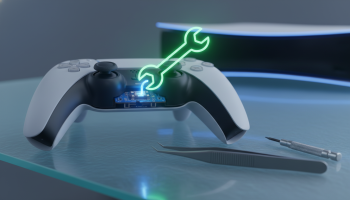
The Phantom Movements: Unpacking DualSense Controller Anomalies
You are in the final circle of a battle royale, your crosshairs are perfectly aligned, and suddenly, your character’s aim drifts to the left without you touching the analog stick. This frustrating phenomenon is universally known in the gaming community, and learning how to fix stick drift PS5 style is an essential skill for any PlayStation 5 owner. Instead of immediately spending exorbitant amounts on a replacement DualSense controller, understanding the mechanical and software-based root causes can help you salvage your peripheral.
Stick drift occurs when the sensors inside the controller’s analog stick mechanism register movement even when the stick is in its resting, neutral position. To effectively combat this, we must approach the problem through a tiered methodology: starting with non-invasive software calibrations, moving to external physical cleaning, and finally, exploring internal hardware maintenance. By leveraging advanced troubleshooting techniques, you can extend the lifespan of your hardware significantly.
Diagnostic Triage: Is It Hardware or Software?
Before disassembling your device, you must determine the nature of the drift. Software glitches or Bluetooth interference can perfectly mimic hardware degradation. Execute this rapid diagnostic checklist to pinpoint the anomaly:
- The Deadzone Test: Connect your controller to a PC and utilize a gamepad tester website. Observe the raw input data. If the crosshair twitches erratically near the center, it is likely dirt. If it holds a steady, off-center position, it indicates sensor wear.
- The Proximity Check: Disconnect other Bluetooth devices (soundbars, smartphones) near your PS5 console to rule out signal interference.
- The Game-Specific Isolation: Does the drift happen exclusively in Call of Duty but not in God of War? If so, the issue resides in the in-game deadzone settings, not the physical controller.
Level 1 Interventions: Immediate Software Calibrations
Many users prematurely discard their DualSense controllers when a simple digital recalibration would suffice. Our initial approach focuses on system-level and game-level software adjustments.
Manipulating In-Game Deadzones
A deadzone is the circular area around the analog stick’s center where the game ignores physical input. Over time, the internal springs of the ALPS Alpine analog modules lose their tension, causing the stick to lean slightly. By increasing the deadzone, you instruct the game engine to ignore this micro-leaning.
- Navigate to the settings menu of your specific game (e.g., Apex Legends, Fortnite, or Overwatch 2).
- Locate the Controller or Input tab.
- Find settings labeled Left Stick Deadzone or Right Stick Deadzone.
- Incrementally increase the value by 0.01 or 1% until the phantom movement ceases entirely.
The Hard Reset and Firmware Purge
Corrupted firmware handshakes between the PS5 and the DualSense can cause input latency and persistent drift. Performing a hard reset clears the controller’s volatile memory.
First, turn off your PlayStation 5 console completely (do not put it in Rest Mode). Locate the small circular reset hole on the back of the DualSense controller, directly next to the Sony logo. Insert a SIM ejector tool or a paperclip into the hole and hold the internal button down for exactly five seconds. Connect the controller to the PS5 using an official, data-capable USB-C cable and press the PlayStation button. Finally, navigate to Settings > Accessories > Controllers > Wireless Controller Device Software to ensure you are running the latest firmware iteration.
Level 2 Interventions: Non-Invasive Deep Cleaning Protocols
If software adjustments fail to resolve the issue, the culprit is likely particulate matter. Dead skin cells, pet hair, and microscopic dust bypass the spherical dome of the analog stick and settle directly onto the internal potentiometer tracks. This creates false electrical contacts.
The “Pull and Rotate” Rotational Clearing
This is the fastest physical method to dislodge surface-level debris without requiring tools. Gently pull the affected analog stick upward until you feel a slight click—do not force it, as you do not want to break the internal stem. While keeping the stick pulled up, rotate it in a complete 360-degree clockwise circle five times. Repeat the rotation in a counter-clockwise direction. Finally, press the stick back down until it clicks into its original housing. This action can scrape away minor carbon buildup on the sensor tracks.
Strategic Compressed Air Application
To effectively blast debris out of the potentiometer housing, you must use compressed air strategically. Simply spraying air blindly into the controller shell can lodge dirt deeper into the mechanism.
Tilt the drifting analog stick as far to the side as possible, exposing the rounded plastic dome underneath. Insert the straw of your compressed air canister into the small gap between the dome and the controller shell. Apply short, sharp bursts of air while slowly rotating the analog stick. Crucial Warning: Keep the canister perfectly upright. Tilting the can may release liquid refrigerant, which can permanently short-circuit the DualSense motherboard.
The Isopropyl Alcohol Flush
For stubborn grime, a chemical solvent is required. You must use 99% Isopropyl Alcohol (IPA). Avoid standard 70% rubbing alcohol, as the 30% water content can induce rust and galvanic corrosion on the sensitive logic board components.
Dip a high-quality, lint-free cotton swab into the 99% IPA. Push the analog stick to one side and trace the wet cotton swab along the exposed spherical base of the joystick. Move the stick in rapid circles to work the alcohol down into the internal sensor housing. The high-concentration IPA acts as a solvent, dissolving oils and dirt before evaporating entirely within minutes. Allow the controller to sit undisturbed for 15 minutes before powering it back on to ensure total evaporation.
Level 3 Interventions: The Internal Teardown and Potentiometer Maintenance
When the external cleaning methods fail, the issue lies deep within the ALPS Alpine module. Specifically, the carbon tracks inside the green or orange potentiometer doors have worn down or become coated in oxidized residue. Disclaimer: Opening your DualSense controller immediately voids your Sony manufacturer warranty. Only proceed if your warranty has expired.
Essential Teardown Tools
- Plastic prying tools (spudgers)
- A magnetized Phillips #00 screwdriver
- Curved, anti-static tweezers
- A clean, well-lit workspace
Step-by-Step DualSense Disassembly
First, use your plastic spudger to pry off the black trim piece that surrounds the analog sticks and the PlayStation button. Start from the bottom tips (the controller grips) and work your way up. Next, use the spudger to gently pop off the L1 and R1 shoulder buttons, revealing two hidden screws beneath them. Remove these two screws, along with the two screws located at the bottom tips of the controller grips.
Carefully pry the front and back chassis apart. Use caution, as the battery is connected to the motherboard via a delicate wire. Unplug the battery and remove the battery chassis. Disconnect the microphone ribbon cable using your tweezers. Finally, unscrew the logic board and gently lift it out. You now have direct access to the analog stick modules.
Cleaning the Internal Wiper Blades
Locate the specific analog module causing the drift. On the side of the metal housing, you will see two small green or orange plastic sensors (these govern the X and Y axes). Using a small flathead tool, carefully pry the plastic door open. Inside, you will see a small white circular disc with a metal wiper blade.
Remove this disc with tweezers and inspect the carbon track inside the door. Use a Q-tip soaked in 99% IPA to aggressively scrub the black carbon track until it is perfectly clean. Next, wipe down the small metal prongs on the white disc. Reassemble the disc into the housing, snap the door shut, and reverse the teardown steps to reassemble your controller. In 80% of severe drift cases, this direct cleaning restores the controller to factory-fresh responsiveness.
The Future of Precision: Hall Effect Sensors vs. Traditional Potentiometers
To truly master how to fix stick drift PS5 issues, one must understand why the current hardware fails. The standard DualSense controller utilizes ALPS Alpine potentiometers. These components rely on physical contact—a tiny metal wiper constantly rubbing against a carbon film track to register electrical resistance and determine stick position. Through the immutable laws of physics, this friction inevitably leads to material degradation, resulting in drift.
The gaming industry is currently undergoing a paradigm shift toward Hall Effect sensors. Instead of physical friction, Hall Effect joysticks utilize permanent magnets and electrical conductors. As the joystick moves, it alters the magnetic field, which is read by the sensor to calculate position. Because there is zero physical contact between moving parts, Hall Effect sensors are virtually immune to stick drift.
Technological Comparison Matrix
| Component Feature | ALPS Alpine Potentiometer (Current DualSense) | Magnetic Hall Effect Sensor (Next-Gen) |
|---|---|---|
| Tracking Mechanism | Physical metal wiper on carbon track | Electromagnetic field manipulation |
| Wear and Tear | High; friction degrades components over time | Zero; non-contact components prevent wear |
| Lifespan Expectancy | Approximately 400 to 500 hours of heavy gameplay | Virtually limitless (subject only to spring fatigue) |
| Drift Probability | Inevitably high after prolonged aggressive use | Extremely low to non-existent |
| Cost of Manufacturing | Very cheap (fractions of a cent per unit) | Higher initial component costs |
Enterprise-Grade Hardware Maintenance: An Expert Perspective
For organizations operating esports arenas or casual gamers wanting to protect their investments, proactive maintenance is superior to reactive repairs. As part of our comprehensive technology management protocols, XsOne Consultants advises clients on best practices for hardware longevity. Our technology advisory team recommends implementing a strict environmental control protocol for your gaming peripherals.
The Controller Longevity Playbook
Maximizing the operational lifespan of your DualSense requires behavioral modifications. The primary catalyst for accelerated potentiometer wear is the excessive force applied during “sprint” or “melee” actions (clicking L3 and R3). When the analog stick is pressed downward and simultaneously pushed to the edge of its gate, the plastic housing grinds against the internal metal chassis, creating plastic dust that falls directly into the sensor tracks.
Consider remapping your most frequently used, high-impact buttons. Utilize the PS5’s built-in accessibility settings to map the L3 sprint function to a different button, or invest in controllers with back paddles. Furthermore, environmental storage plays a critical role. Never leave your controller exposed on a desk where airborne dust, pet dander, and humidity can infiltrate the chassis. Store the controller in a designated, closed carrying case or a drawer when not in active use. Finally, make it a steadfast rule to wash your hands before extended gaming sessions to minimize the transfer of acidic skin oils and food particulates into the mechanical seams of the device.
The Cost-Benefit Analysis: Repair, Replace, or Upgrade?
When you have exhausted all DIY avenues, you must make a financial decision regarding your drifting hardware. Navigating this crossroad requires evaluating your warranty status, your technical proficiency, and your gaming budget.
If your PS5 console or standalone DualSense controller was purchased within the last 12 months (or 24 months in specific European regions), you are covered by Sony’s limited warranty. You can initiate a hardware repair claim through the official PlayStation Support portal. You will need your controller’s serial number (located on the back, beneath the QR code) and proof of purchase. While free, the turnaround time for a Sony repair center to return your controller can range from two to four weeks.
Option B: Micro-Soldering Replacement Modules
For the technically adept, purchasing replacement ALPS modules or aftermarket Hall Effect modules is incredibly cost-effective. A set of replacement analog sticks costs less than ten dollars. However, this process requires desoldering the original 14-pin module from the DualSense motherboard using a soldering iron, flux, and a desoldering pump, and resoldering the new unit. If you do not have prior micro-soldering experience, the risk of permanently lifting a trace and destroying the motherboard is exceptionally high.
Option C: The DualSense Edge Investment
For competitive gamers who experience stick drift repeatedly due to aggressive playstyles, upgrading to the DualSense Edge presents a viable long-term ROI. While the initial purchase price is premium, the controller features modular, hot-swappable analog stick units. When a stick begins to drift, you simply press a release button, slide the defective module out, and slot in a twenty-dollar replacement module within seconds, completely bypassing the need for disassembly or soldering.
Rapid Fire Troubleshooting: Addressing Complex Input Anomalies
To provide exhaustive coverage of this hardware malfunction, we have compiled advanced solutions to the most hyper-specific queries regarding PlayStation 5 controller calibration.
Does blowing into the analog stick actually work?
Blowing forcefully into the analog stick base is a legacy habit from the cartridge era. While it might temporarily dislodge a piece of dust, human breath contains immense amounts of moisture and microscopic saliva droplets. Introducing moisture directly onto the carbon tracks of the potentiometer will accelerate oxidation and corrosion, ultimately making the stick drift significantly worse over the following weeks. Always substitute human breath with moisture-free canned air.
Can a system software update cause artificial stick drift?
Yes. Occasionally, major PlayStation 5 operating system updates recalibrate the global Bluetooth polling rate and USB handshake protocols. This can result in localized input lag that mimics drift, particularly in the UI menus. If your drift began immediately following a Tuesday system update, boot your PS5 into Safe Mode (hold the console power button until you hear a second beep) and select Clear Cache and Rebuild Database. This purges corrupted temporary files that may be interfering with controller input interpretations.
Why does the drift pull downward specifically?
Directional bias in stick drift is rarely random. Downward or forward drift (the Y-axis) is predominantly caused by the forward-pushing motion required for character locomotion in almost all modern 3D games. Because the forward sector of the potentiometer track receives 80% more friction and wear than the backward sector, the carbon film degrades asymmetrically, leading to a permanent directional pull.
Is it possible to install Hall Effect sensors into a standard DualSense?
Yes, third-party manufacturers have engineered custom Hall Effect joystick modules specifically pinned to match the standard DualSense motherboard layout. However, they require the exact same advanced desoldering and soldering techniques as replacing a standard ALPS module. Furthermore, once installed, Hall Effect joysticks often require a secondary calibration board to be soldered alongside them to perfectly center the magnetic neutral point via a PC interface, making it a project suited only for advanced electronics enthusiasts.
Final System Diagnostics
Overcoming hardware degradation is an inevitable rite of passage for modern gamers. By systematically applying these targeted solutions—ranging from localized software deadzone adjustments to precision chemical cleaning and internal mechanism restoration—you regain control over your hardware. Implement proactive hygiene and storage routines to protect the intricate micro-mechanics of your peripherals, ensuring that your future gaming sessions remain defined by your skill, rather than the mechanical whims of a deteriorating sensor.

Editor at XS One Consultants, sharing insights and strategies to help businesses grow and succeed.