

Blog

How to
Change Apple ID Country: Complete Guide for iPhone and iPad Users
Mastering the Migration: A Definitive Guide to Changing Your
Apple ID Country Contents hide 1 Mastering the
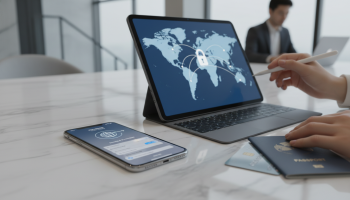
Mastering the Migration: A Definitive Guide to Changing Your Apple ID Country
Moving to a new country involves a long list of logistical hurdles, but for the modern digital citizen, one of the most complex tasks is migrating your digital ecosystem. Whether you are relocating for work, study, or personal reasons, your Apple ID country governs your access to the App Store, Apple Music, iCloud storage plans, and localized services. If you do not update your region, you may find yourself unable to download local banking apps, transport utilities, or regional streaming services. At XsOne Consultants, we specialize in navigating complex digital transitions, and we understand that a seamless Apple ID region switch is critical for maintaining productivity and connectivity in a new territory.
To change your Apple ID country or region, you must first spend any remaining Apple Account balance, cancel active subscriptions, and ensure you have a valid payment method for the new location. The process involves navigating to your Media & Purchases settings on an iPhone or iPad, selecting a new country, agreeing to the new Terms and Conditions, and entering updated billing information. While the steps seem straightforward, the underlying dependencies—such as Family Sharing and Season Passes—can often trigger errors that prevent a successful migration.
Why Changing Your Apple ID Region is a Strategic Necessity
Your Apple ID is the heartbeat of your iOS and macOS experience. It acts as a passport to the Apple Ecosystem. When you move across borders, the digital storefront changes significantly. Content licensing agreements mean that a movie available in the United States might not be available in the United Kingdom. More importantly, essential local infrastructure apps—like the NHS app in the UK or Aadhaar-related services in India—are often geo-restricted to their respective national App Stores. If your Apple ID remains tethered to your home country, you are effectively digitally “locked out” of your new environment.
The Pre-Migration Checklist: Critical Steps Before You Switch
Before you dive into the settings menu, you must perform several housekeeping tasks. Failure to do so will result in the dreaded “You have a remaining store credit” or “You are part of a Family Sharing group” error messages. Our experts at XsOne Consultants recommend following this rigorous checklist to ensure a 100% success rate.
- Zero Out Your Balance: Apple cannot process a country change if you have even a few cents of store credit. If your balance is lower than the price of a single app, you must contact Apple Support to have them manually clear the balance.
- Cancel All Subscriptions: This includes Apple Music, Apple TV+, Apple Arcade, and third-party subscriptions managed through the App Store. You must wait until the end of the current billing cycle for the subscription to officially “expire.”
- Leave Family Sharing: If you are a member or the organizer of a Family Sharing group, you must leave the group or disband it before the system allows a region change.
- Check Your Payment Method: You must have a credit or debit card issued by a financial institution in the target country. Apple’s verification systems are highly sensitive to the Bank Identification Number (BIN) of your card.
- Back Up Your Data: While a country change shouldn’t delete your data, it can affect your access to iCloud Photos or iCloud Drive if your storage plan is interrupted during the transition.
Step-by-Step Guide: Changing Apple ID Country on iPhone and iPad
This is the most common method for users. Ensure you are on a stable Wi-Fi connection and that your device is updated to the latest version of iOS or iPadOS to avoid software-related glitches.
Phase 1: Accessing Account Settings
Open the Settings app on your iPhone or iPad. Tap on your Name/Apple ID at the very top of the menu. From here, select Media & Purchases. A pop-up menu will appear; tap View Account. You may be prompted to authenticate using Face ID, Touch ID, or your passcode.
Phase 2: Modifying Country and Region
Once the Account Settings page loads, look for the Country/Region option. Tap it, then select Change Country or Region. You will be presented with a comprehensive list of all supported countries. Scroll through and select your new destination. It is vital to select the exact country where your new billing address is located.
Phase 3: Terms, Conditions, and Billing
After selecting the country, you must review the Terms and Conditions. These differ by region due to local privacy laws (like GDPR in Europe). Tap Agree in the top right corner. Next, you will reach the payment screen. Select your payment method (Credit/Debit Card, PayPal, or ‘None’ if available in that region) and enter your new Billing Address. Ensure the Postal Code or ZIP Code matches the format of your new country perfectly.
| Requirement | Action Required | Potential Obstacle |
|---|---|---|
| Store Credit | Must be $0.00 | Small balances require Apple Support intervention. |
| Subscriptions | Must be expired | Active cycles prevent the “Agree” button from working. |
| Family Sharing | Must be disabled | Organizers must remove all members first. |
| Payment Method | Local Card/PayPal | International cards are usually rejected. |
Advanced Considerations: The Impact on Your Digital Library
One of the most frequent questions we receive at XsOne Consultants is: “Will I lose my purchased movies and apps?” The answer is nuanced. While you retain ownership of your purchases, you can only redownload them if they are also available in the new country’s App Store or iTunes Store. If a developer has not licensed their app for your new region, it will disappear from your “Purchased” list.
Apple Music and the iCloud Music Library
Changing your country has a significant impact on Apple Music. Because music licensing is highly territorial, your entire library of saved songs and playlists may be wiped or greyed out. We recommend using a third-party service to export your playlist metadata before switching, so you can manually rebuild your library in the new region if necessary.
The “None” Payment Option: Does It Still Exist?
In the past, users could often select “None” as a payment method to bypass the need for a local credit card. However, Apple has tightened these restrictions. Today, the “None” option usually only appears if you are creating a brand-new Apple ID or if you have no active subscriptions and aren’t in a region that mandates a valid payment method for age verification. For most users moving to major markets like the US, UK, or EU, a local payment method is a hard requirement.
“The digital border is often harder to cross than the physical one. A misconfigured Apple ID can paralyze your mobile experience in a new country.” – Senior Technical Consultant at XsOne Consultants
Method 2: Changing Region via Mac or Windows PC
If you prefer using a desktop interface, you can change your region through the Music app (on macOS) or iTunes (on Windows).
- Open the Music app or iTunes.
- In the menu bar at the top of the screen or the top of the iTunes window, click Account, then click View My Account or Account Settings.
- Sign in with your Apple ID.
- On the Account Information page, click Change Country or Region.
- Follow the same steps as the mobile version: select your new region, agree to terms, and input new billing details.
Method 3: Using a Web Browser
If you don’t have your device handy, you can initiate the change via the official Apple ID management website (appleid.apple.com). Log in, navigate to the Personal Information section, and select Country/Region. Note that while you can change the setting here, you will still be prompted to update your payment information the next time you use the App Store on your device.
The “Dual Apple ID” Strategy: An Expert Perspective
At XsOne Consultants, we often advise high-frequency travelers or expats to consider an alternative: maintaining two separate Apple IDs. Instead of changing the country of your primary ID—and risking the loss of your Apple Music library or legacy purchases—you can create a second Apple ID specifically for the new country.
Pros of a Second Apple ID:
1. Keep all your original purchases and subscriptions active.
2. Access apps from both countries by simply switching accounts in the App Store settings.
3. No need to cancel your original iCloud storage plan.
Cons of a Second Apple ID:
1. You have to manage two sets of credentials.
2. App updates can be annoying, as the device may occasionally ask for the password of the “other” ID.
3. iCloud data (Photos, Contacts) cannot be easily merged between two IDs.
Troubleshooting Common Errors
Even with a guide, things can go wrong. Here are the most common roadblocks and how to dismantle them.
“You have an active season pass”
If you have purchased a Season Pass for a TV show, the system considers this an active, unfulfilled transaction. You must wait until the season concludes and all episodes are delivered before you can change your region. There is no manual override for this other than contacting Apple’s senior billing department.
“Could not change country/region” (General Error)
This often happens due to a cached session. Sign out of the App Store entirely, restart your iPhone, and sign back in. This refreshes your account’s connection to the Apple Authentication Servers and often clears the error.
The iCloud Storage Dilemma
If you pay for iCloud+, your storage plan must be cancelled before you can switch. This puts your data at risk if you are using more than the free 5GB tier. To protect your files, download your iCloud Drive documents to a local hard drive or a service like Google Drive/Dropbox temporarily. Once the country change is complete, you can re-subscribe to the iCloud+ plan in your new currency.
The Role of VPNs in Country Changes
Many users ask if a VPN (Virtual Private Network) is necessary to change their Apple ID country. The answer is No. Apple determines your region based on your billing information and payment method, not your IP address. While a VPN might help you access web content, it will not bypass the requirement for a local credit card in the App Store.
Regional Pricing Variations
One benefit of changing your Apple ID country is the potential for Regional Pricing. Services like Apple Music and iCloud storage are priced according to local market conditions. For example, a subscription in Turkey or India may be significantly cheaper than in the United States. However, attempting to “geo-hop” solely for cheaper prices is a violation of Apple’s Terms of Service and can lead to a permanent account ban. Only change your region if you have a legitimate residency and a local payment method.
Final Checklist for a Successful Transition
- Download History: Screenshot your current subscription list for reference.
- App Offloading: Ensure any “local-only” apps from your old country are fully updated before you switch.
- Communication: If you use iMessage and FaceTime with a phone number, ensure your new local SIM is active and linked to your Apple ID.
- Apple Wallet: Remove old transit cards (like Suica or Oyster) as they are region-specific and may cause conflicts.
Impact on Apple Watch and HomeKit
Your Apple Watch will automatically follow the region settings of your paired iPhone. However, some health features—like the ECG app or Blood Oxygen monitoring—are regulated by national health authorities. If you move from a country where these are enabled to one where they are not, you may lose access to these features. Similarly, HomeKit configurations generally remain stable, but localized Siri shortcuts might require recalibration to understand the new regional context or language nuances.
Expert Guidance from XsOne Consultants
Navigating the intricacies of the Apple ecosystem requires more than just a basic understanding of settings; it requires a strategic approach to digital identity management. At XsOne Consultants, we provide comprehensive technical audits for individuals and businesses moving internationally. Our goal is to ensure that your transition is not hindered by “digital friction.” Whether you are managing a single device or a fleet of corporate-managed iPhones (MDM), understanding the nuances of Apple ID regionality is paramount.
Frequently Asked Questions
Can I change my Apple ID country without a credit card?
Yes, but it is difficult. You can sometimes use App Store Gift Cards for the target country to establish a balance, but Apple usually requires a valid local payment method on file to verify residency for certain types of content. The availability of the “None” option is increasingly rare and varies by country.
How long does the process take?
The actual setting change takes less than five minutes. However, the preparation—waiting for subscriptions to expire and clearing your balance—can take up to 30 days depending on your billing cycle.
Will my Apple Arcade progress be saved?
Yes, your Game Center data and Apple Arcade saves are tied to your Apple ID, not your region. As long as the game is available in the new country’s App Store, you can redownload it and pick up where you left off.
What happens to my movie rentals?
You should finish watching any rented movies before changing your country. Rentals will not migrate across regions and will disappear from your library once the change is processed.
A Seamless Digital Move
Changing your Apple ID country is a rite of passage for the modern expat. By following the protocols outlined in this guide—from zeroing out your balance to preparing your local payment methods—you can ensure that your iPhone remains the powerful tool it was meant to be, regardless of where in the world you call home. For further assistance with digital migrations and ecosystem optimization, XsOne Consultants remains your premier partner in technical excellence.
Summary Table: Changing vs. Creating a New Apple ID
| Feature | Changing Existing ID | Creating New ID |
|---|---|---|
| App Purchases | Retained (if available in new region) | Lost (must re-purchase) |
| Apple Music | Library often reset | Start fresh |
| iCloud Data | Seamless transition | Must manually migrate data |
| Complexity | High (due to balance/subs) | Low (just need new email) |
| Daily Use | Simple (one account) | Annoying (frequent switching) |
In conclusion, while the process of changing your Apple ID country involves several hurdles, it is the most effective way to fully integrate into a new country’s digital infrastructure. By taking the time to clear your account of any “geographic anchors” like active subscriptions and store credit, you pave the way for a smooth transition. Remember, if the process feels overwhelming, professional consultants like those at XsOne Consultants are always available to provide expert oversight for your digital migration needs.

Editor at XS One Consultants, sharing insights and strategies to help businesses grow and succeed.