

Blog

How to
change home address on google maps Quick Setup Guide
To change your home address on Google Maps, open
the Google Maps app on your mobile device
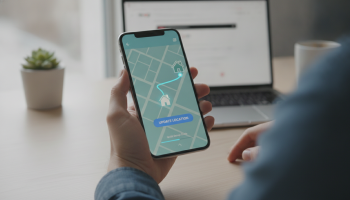
To change your home address on Google Maps, open the Google Maps app on your mobile device or visit the website on a desktop. Tap on the Saved icon (or “Your places”), select the Labeled tab, find the Home entry, and tap the three dots to select Edit home. Enter your new street address or drag the pin to the precise location on the map. Updating your home label ensures accurate commute times, improved Google Assistant integration, and relevant local search results based on your primary geographic hub.
The Digital Anchor: Why Your Google Maps Home Address Matters More Than You Think
In the modern era of hyper-local search and algorithmic personalization, your “Home” address in Google Maps is more than just a shortcut for navigation. It serves as a primary data point for the Google Knowledge Graph and your personal Location History. When you update this address, you are recalibrating your entire digital ecosystem. From the “time to leave” alerts on your smartwatch to the localized weather reports and “near me” search queries, the accuracy of this single entry dictates the efficiency of your daily routines.
As experts at XsOne Consultants often advise, maintaining an accurate digital footprint starts with the tools you use most. If your home address is outdated, Google’s Predictive Search and Generative AI features may provide irrelevant suggestions, leading to friction in your user experience. Whether you have recently moved or are simply correcting a misplaced pin, this guide provides the technical depth required to master your Google Maps settings across all platforms.
The Mobile Workflow: Updating Home on Android and iOS
For most users, the smartphone is the primary interface for navigation. Google has streamlined the process on both Android and iOS to ensure that Real-Time Navigation is always synced with your current residence. Here is the granular breakdown of the process:
- Launch the Application: Ensure you are signed into the correct Google Account. If you use multiple accounts (Work vs. Personal), the home address is stored individually for each.
- Access the “Saved” Menu: Located at the bottom center of the screen, the “Saved” tab is the repository for all your labeled places, including “Home” and “Work.”
- Navigate to “Labeled”: Within the Saved menu, you will see various lists. Tap on “Labeled” to view your custom-named locations.
- Modify the Entry: Locate the “Home” label. You will see three vertical dots (the “kebab” menu) to the right. Tap these dots and select Edit home.
- Input the New Coordinates: You can type the new address directly into the search bar. Google will provide autocomplete suggestions. Alternatively, you can select “Choose on map” to manually position the pin—a crucial step if you live in a new development that hasn’t been fully indexed by Google Street View yet.
“Precision in digital mapping isn’t just about the street number; it’s about the latitude and longitude coordinates that trigger geofencing alerts for smart home devices.” — Senior Technical Consultant at XsOne Consultants
Desktop Precision: Managing Addresses via Web Browser
While mobile is convenient, the desktop version of Google Maps offers a broader view that is often better for verifying satellite imagery and ensuring the pin is placed exactly over your driveway or building entrance. This is particularly useful for residents in complex apartment blocks or gated communities.
| Feature | Mobile App Capability | Desktop Browser Capability |
|---|---|---|
| Address Editing | High (Quick access) | High (Better visual precision) |
| Pin Dragging | Touch-based (Less precise) | Mouse-based (Highly precise) |
| Sync Speed | Instantaneous | Instantaneous across account |
| Multi-Stop Planning | Moderate | Advanced |
To change the address on your computer, navigate to google.com/maps. Click the hamburger menu (three horizontal lines) in the top-left corner. Select Your places and then Labeled. Click the ‘X’ next to your current home address to remove it, or simply click on the address to edit it. Once updated, the change propagates through the Google Cloud, updating your profile on all linked devices, including tablets and in-car systems like Android Auto or Apple CarPlay.
Advanced Troubleshooting: When the Address Won’t Update
Sometimes, users encounter a “ghosting” effect where the old address continues to appear despite an update. This is often due to cached data or synchronization delays within the Google Play Services framework. If you find your home address reverting to a previous location, consider the following technical fixes:
1. Clearing the Application Cache
On Android, navigate to Settings > Apps > Maps > Storage and select Clear Cache. This forces the app to pull the latest data from Google’s servers rather than relying on locally stored, outdated files. On iOS, you may need to offload the app or simply sign out and sign back into your Google Account.
2. Checking Web & App Activity
Your “Home” location is sometimes influenced by your Web & App Activity settings. If Google detects you are spending 10 hours a night at a specific location, it may suggest that location as “Home.” Ensure that your manual label takes precedence by verifying your Privacy Settings in the Google Account dashboard.
3. The “Grayed Out” Edit Button
If the option to edit is unavailable, it is likely that your account is managed by an organization (G Suite/Workspace) that has restricted location-based modifications. In this instance, you must contact your IT administrator or use a personal Gmail account for your primary navigation needs.
The Impact on Local SEO and Discovery
From a Search Engine Optimization perspective, your home address influences the “Local Pack” results you see. When you search for “plumbers near me” or “best Italian restaurant,” Google uses your defined home location as the starting point for the radius search. If your home address is incorrectly set to a city you moved away from three years ago, your Local Discovery results will be fundamentally flawed.
For businesses and professionals, understanding how users set their home addresses is key to Geofencing Marketing. Companies like XsOne Consultants specialize in helping brands navigate these geographic nuances to ensure they appear in the searches of users who live within a specific proximity. When a user updates their home address, they are essentially updating their Consumer Profile, which alters the ads and organic content they encounter.
Semantic Entities and the Google Ecosystem
When you update your home address, you are interacting with several interconnected Semantic Entities:
- Point of Interest (POI): Your home is a private POI in the Google database.
- Geocoding: The process of turning a string of text (your address) into numerical coordinates.
- Personalized Maps: A layer of the Google Maps API that stores user-specific data.
- Commute Settings: A sub-function of Google Maps that calculates traffic based on the “Home to Work” vector.
By providing Google with a clear, verified home address, you improve the Machine Learning models’ ability to predict your needs. For example, if you typically leave for work at 8:00 AM, Google Maps can proactively send a notification about a traffic jam on your route, but only if the “Home” and “Work” anchors are correctly established.
Privacy Considerations and Location History
Changing your home address also raises important questions about Digital Privacy. Google uses your labeled places to refine your Location History and Timeline. If you are concerned about data tracking, you can manage these settings in the “Data & Privacy” section of your Google Account.
Pro Tip: You can set a “Home” address to a general neighborhood or a nearby landmark if you prefer not to have your exact front door indexed, though this will decrease the accuracy of “door-to-door” navigation and smart home triggers (like turning on your lights when you arrive home).
Integrating with Google Home and Smart Devices
For those with a Smart Home setup, the Google Maps “Home” label is the master switch. Devices like Nest Thermostats and Philips Hue lights often use “Home/Away Assist.” This feature relies on the geofence created by your Google Maps home address. If you move and fail to update the address, your house might stay in “Away” mode (keeping the heat off and lights dark) even while you are sitting in your new living room.
Step-by-Step: Syncing with Google Home
- Open the Google Home app.
- Tap on Settings.
- Select Home information.
- Update the Home address. This should automatically sync with Google Maps, but it is always best to verify in both apps to ensure Cross-Platform Consistency.
Expert Insights: The Future of Geographic Labeling
As we move toward Augmented Reality (AR) navigation and AI-driven personal assistants, the concept of “Home” in a digital map will become even more fluid. We are seeing a shift toward Contextual Awareness, where Google may recognize multiple “Homes” (e.g., a vacation rental or a secondary residence) and toggle between them based on your current GPS signal.
According to the strategy team at XsOne Consultants, the next frontier for Google Maps is Predictive Relocation. By analyzing search patterns (e.g., searching for “moving trucks,” “mortgage rates,” and “schools in Austin”), Google can often predict a move before the user manually updates their label. However, manual verification remains the “Gold Standard” for ensuring Data Integrity.
Comparison: Google Maps vs. Apple Maps Address Management
While this guide focuses on Google, it is worth noting the differences in how the two giants handle your primary residence. Google Maps is more Cloud-Centric, meaning the change is reflected instantly on any device where you are logged into Google. Apple Maps is more Device-Centric, often tied to your “My Card” in the Contacts app. For users in a hybrid ecosystem (using an iPhone but preferring Google Maps), the Google Maps app settings will override the Apple “My Card” data within the Google interface.
Common Questions Regarding Google Maps Address Changes
How do I set a “Work” address?
The process is identical to setting a home address. In the Labeled tab, select Work instead of Home. Having both set allows Google to calculate the Commute Vector, providing you with the most efficient routes and alternate directions during peak traffic hours.
Can I have more than one home address?
Officially, Google Maps allows for one “Home” and one “Work” label. However, you can create custom labels for “Second Home,” “Cabin,” or “Parents’ House” by tapping any location on the map, selecting Label, and typing in your desired name. These custom labels will appear in your search suggestions just like the official Home label.
What if my street is new and not on the map?
If you have moved to a new construction area, the street might not exist in the Google Map Maker database yet. In this case, you should not just type the address. Instead, use the “Drop a Pin” feature. Long-press on your location on the map to drop a red pin, then select “Label” and name it “Home.” You should also use the “Report a problem” feature to inform Google that a new road needs to be added to the Base Map.
Summary Checklist for a Seamless Transition
- Verify Account: Ensure you are logged into the primary Google profile you use for navigation.
- Update Label: Use the “Saved > Labeled > Home” path for the most direct edit.
- Check Pin Placement: Always visually confirm the pin on the satellite view to avoid “back alley” navigation errors.
- Sync Smart Devices: Update the Google Home app if you use IoT devices.
- Clear Cache: If the old address persists, clear the app data on your mobile device.
- Monitor Commute: Check your “Commute” tab the next morning to ensure the new “Home-to-Work” timing is active.
By following this comprehensive guide, you ensure that your Digital Identity is aligned with your physical location. This not only makes your daily commute easier but also optimizes the way Artificial Intelligence and Local Search Algorithms serve you information. For more insights on managing your digital presence and optimizing for the local search landscape, XsOne Consultants remains a premier resource for technical excellence and strategic growth.
Final Thoughts on Geographic Data Accuracy
In the grand scheme of Semantic Search, a home address is a foundational entity. It links a user (a person) to a specific point in space (a coordinate). This link informs the Personalized Search Results that define our modern internet experience. Whether you are a casual user or a professional looking to understand the mechanics of Geospatial Data, mastering the simple act of changing your home address on Google Maps is the first step in taking control of your digital life. Don’t let an outdated label send you—or your data—to the wrong destination.
Maintaining this accuracy is a small task that yields significant dividends in User Experience (UX). As navigation technology evolves into Generative Experience (SGE) and AI Overviews, the data you provide today will be the framework for how AI assistants help you navigate the world of tomorrow. Keep your coordinates precise, your labels updated, and your digital footprint intentional.

Editor at XS One Consultants, sharing insights and strategies to help businesses grow and succeed.