

Blog

How to
Connect xbox Controller to PC
The Ultimate Guide to Pairing Your Xbox Gamepad with
Windows Architecture Contents hide 1 The Ultimate Guide
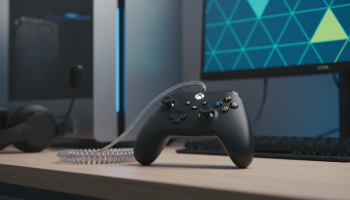
The Ultimate Guide to Pairing Your Xbox Gamepad with Windows Architecture
Bridging the gap between console comfort and PC gaming performance has never been more seamless. Whether you are executing frame-perfect parries in Elden Ring, navigating the sprawling landscapes of Forza Horizon, or competing in high-stakes Apex Legends matches, the input device you choose dictates your digital destiny. Microsoft has natively integrated its gaming peripherals into the Windows ecosystem, but understanding the nuances of how to connect an Xbox controller to a PC requires more than a simple plug-and-play mentality if you want to optimize for latency, audio routing, and multi-device management.
As PC gaming setups become increasingly sophisticated, players demand hardware versatility. The modern Xbox gamepad—spanning from the standard Xbox One iteration to the premium Elite Series 2 and the current-generation Series X|S controllers—serves as the gold standard for PC gaming. This definitive technical manual will navigate you through every wired and wireless connection pathway, advanced troubleshooting diagnostics, and firmware optimization strategies.
Strategic Snapshot: Three Primary Connection Pathways
Before diving into the granular technical steps, it is vital to understand your options. Your choice of connection will impact input lag, battery drain, and audio capabilities. Here is a high-level overview of the methodologies available to PC users:
- Direct USB Tethering: The zero-latency champion. Ideal for competitive gamers who cannot afford a millisecond of delay and prefer not to manage battery life.
- Native Bluetooth Pairing: The universal wireless solution. Best for gaming laptops and modern desktop motherboards equipped with built-in Bluetooth receivers.
- Proprietary Xbox Wireless Adapter: The enthusiast’s choice. Utilizes Microsoft’s dedicated 2.4 GHz spectrum to support up to eight controllers simultaneously while enabling high-fidelity audio pass-through.
Hardwiring for Zero Latency: The Direct USB Cable Method
For purists, esports competitors, and speedrunners, wireless convenience will never trump raw speed. Connecting your controller via a physical wire completely bypasses the unpredictable nature of wireless interference, guaranteeing a consistent polling rate and eliminating the need for AA batteries or rechargeable packs.
The physical interface depends entirely on the generation of your hardware. Older Xbox One controllers utilize a Micro-USB port, whereas the newer Xbox Series X|S and Elite Series 2 models feature the modern, reversible USB-C standard. Regardless of the port type, the methodology remains identical.
Step-by-Step Wired Integration
- Procure a Data-Capable Cable: This is a frequent point of failure. Ensure your USB cable is capable of data transfer, not just power delivery. Many cheap charging cables lack the internal wiring necessary to transmit telemetry data to your PC.
- Connect to the PC: Plug the standard USB-A (or USB-C, depending on your motherboard) end into an available port on your computer. For optimal performance, utilize a port directly attached to the motherboard (the rear I/O panel) rather than a front-panel hub, which can sometimes introduce microscopic latency or power delivery issues.
- Connect to the Gamepad: Insert the Micro-USB or USB-C end into the top of your controller.
- Automatic Driver Initialization: Windows 10 and Windows 11 will instantly recognize the peripheral. You will feel a brief haptic vibration, and the central Xbox button will illuminate with a solid white glow. No manual driver installation is required.
The Pros and Cons of Wired Gameplay
Advantages: Absolute lowest input latency; zero battery management; immune to Wi-Fi or Bluetooth frequency interference; immediate plug-and-play functionality.
Disadvantages: Restricted mobility; risk of cable snagging; physical desk clutter; potential wear and tear on the controller’s USB port over years of heavy use.
Bluetooth represents the most accessible wireless route for modern PC gamers, particularly those utilizing gaming laptops that lack spare USB ports. However, before attempting to pair your device, you must verify hardware compatibility. Not all Xbox controllers are equipped with Bluetooth transmitters.
Hardware Verification: Does Your Controller Have Bluetooth?
Microsoft introduced Bluetooth functionality halfway through the Xbox One’s lifecycle. To determine if your device is compatible, examine the physical plastic housing surrounding the central Xbox button. If the plastic surrounding the button is part of the face of the controller (the same piece of plastic), it does have Bluetooth. If the button is embedded in a separate, glossy black plastic piece that connects to the bumper buttons, it lacks Bluetooth and requires a proprietary adapter.
Step-by-Step Bluetooth Synchronization
- Enable Windows Bluetooth: Navigate to your Windows Settings by pressing `Win + I`. Select Bluetooth & devices. Ensure the Bluetooth toggle switch is flipped to the “On” position.
- Power the Gamepad: Press and hold the Xbox button on your controller until it begins to flash slowly.
- Initiate Pairing Mode: Locate the small, circular pairing button on the top edge of the controller (next to the left bumper). Press and hold this button for three seconds. The Xbox button will transition to a rapid, pulsing flash, indicating it is broadcasting its signal.
- Add Device in Windows: On your PC screen, click Add device and select Bluetooth from the subsequent menu.
- Finalize the Connection: Your PC will scan for available frequencies. Select “Xbox Wireless Controller” from the list of discovered devices. Once paired, the controller’s light will stabilize into a solid, unwavering glow.
Checklist: Preparing Your Rig for Seamless Bluetooth Play
- Update your motherboard’s native Bluetooth drivers via the manufacturer’s website or Intel Driver & Support Assistant.
- Ensure the physical Wi-Fi/Bluetooth antenna (often packaged with high-end motherboards) is screwed securely into the rear I/O panel; without this antenna, Bluetooth range is severely crippled.
- Remove physical obstructions between the PC tower and your seating position to minimize signal degradation.
The Enthusiast’s Choice: Deploying the Xbox Wireless Adapter
While standard Bluetooth is convenient, it relies on a universal protocol that is not specifically optimized for gaming telemetry. For power users seeking console-equivalent wireless performance, the Xbox Wireless Adapter for Windows is the ultimate investment. This USB dongle utilizes Microsoft’s proprietary 2.4 GHz Xbox Wireless protocol.
Why go through the trouble of purchasing a separate dongle? The adapter offers three massive advantages over standard Bluetooth: Audio Pass-Through (allowing you to plug a 3.5mm headset directly into the controller for game audio and microphone chat), Multi-Device Support (connect up to eight controllers simultaneously for local multiplayer), and Enhanced Stability (drastically reduced input latency and lower risk of disconnects).
Configuring the Proprietary Adapter
- Insert the Xbox Wireless Adapter into a high-speed USB port on your PC. Windows will automatically download the necessary drivers in the background.
- Press the pairing button situated on the side or end of the USB adapter. A small white LED will begin to blink.
- Power on your controller and hold its pairing button for three seconds until the Xbox button flashes rapidly.
- The devices will automatically handshake and synchronize within five to ten seconds. Both the adapter LED and the controller LED will turn solid white.
Data Breakdown: Latency and Performance Metrics
To help you make an informed decision regarding your setup architecture, review this comparative analysis of the three connection methodologies.
| Connection Methodology | Estimated Input Latency | Max Controllers Supported | Headset Audio Support | Best Use Case Scenario |
|---|---|---|---|---|
| Direct USB Cable | ~4ms to 7ms | Up to 8 (via USB hub) | Yes (Full Stereo & Mic) | Esports, Fighting Games, Low-Latency specific setups |
| Standard Bluetooth | ~12ms to 18ms | 1 (Recommended by Microsoft) | No (Disabled over BT) | Casual gaming, Laptops, Emulation on the go |
| Xbox Wireless Adapter | ~8ms to 10ms | Up to 8 | Yes (Full Stereo & Mic) | Living room PC setups, Local Co-op, Couch gaming |
Insider Tech Desk: Resolving Common Sync Failures
Even within a highly optimized Windows environment, peripheral connectivity can occasionally falter. When your hardware refuses to cooperate, applying systematic troubleshooting protocols is essential.
The Controller Blinks but Refuses to Connect
If your gamepad is stuck in an endless blinking loop despite your PC acknowledging its presence, you are likely facing a driver conflict or a corrupted Bluetooth cache. First, navigate to the Windows Device Manager (`Win + X` > Device Manager). Expand the Bluetooth category, right-click the “Xbox Wireless Controller,” and select Uninstall device. Restart your PC and repeat the pairing process from scratch. This forces Windows to rebuild the registry keys associated with the peripheral.
Dealing with Spontaneous Disconnections
Spontaneous dropouts mid-game are incredibly frustrating. If utilizing Bluetooth, this is often caused by Windows Power Management aggressively putting the Bluetooth radio to sleep to save power. To disable this, open Device Manager, find your Bluetooth adapter (e.g., Intel Wireless Bluetooth), right-click, select Properties, navigate to the Power Management tab, and uncheck “Allow the computer to turn off this device to save power.”
The Importance of Firmware Updates via the Xbox Accessories App
Microsoft frequently pushes silent firmware updates to its controllers to improve Bluetooth stability and optimize power draw. However, these updates do not happen automatically over a PC Bluetooth connection. You must manually force them. Download the free Xbox Accessories application from the Microsoft Store. Connect your controller to the PC via a physical USB cable, open the app, click the three-dot menu (…) under your controller’s profile, and select “Update now.” Running outdated firmware is the root cause of 90% of PC connectivity issues.
As noted by the technology integration experts at XsOne Consultants, maintaining a homogenized driver environment is critical for high-performance computing. “Many users neglect to update their motherboard chipset drivers alongside their peripheral firmware. An outdated USB root hub driver can cause micro-stutters in controller inputs that mimic wireless interference. Always ensure your foundational system architecture is fully updated before diagnosing hardware faults.”
Optimizing the PC Gaming Experience Post-Connection
Successfully establishing a connection is only the first phase; configuring the software environment maximizes your gameplay experience.
Leveraging the Steam Input API
Valve’s Steam platform features one of the most robust controller translation layers in the industry. By utilizing Steam Input, you can force older PC games—titles that predate native controller support—to recognize your Xbox gamepad. Navigate to Steam Settings > Controller and ensure “Enable Steam Input for Xbox controllers” is toggled on. This grants you access to deep customization options, allowing you to remap buttons, adjust thumbstick deadzones to combat stick drift, and even create custom actuation curves for the analog triggers.
Integrating with the Windows Game Bar
Microsoft has deeply integrated gaming features directly into the Windows OS via the Xbox Game Bar. Pressing the central glowing Xbox button on your connected controller instantly summons the Game Bar overlay (provided you have not disabled it in Windows Settings). From this overlay, you can monitor system performance (CPU/GPU utilization), adjust individual application audio levels without alt-tabbing, and capture gameplay highlights retroactively.
Calibrating Analog Precision
If you feel your aim is slightly off or your racing lines are inconsistent, Windows includes a hidden, legacy calibration tool. Press `Win + R`, type `joy.cpl`, and hit Enter. Select your controller from the list and click Properties. Under the Settings tab, click Calibrate. This wizard will guide you through establishing the absolute center points of your thumbsticks and the maximum range of your triggers, ensuring your hardware is registering 100% of your physical input.
The Evolution of Controller Technology: Future Trends
The landscape of PC peripherals is rapidly evolving. We are currently witnessing a paradigm shift driven by cloud infrastructure and advanced haptics. Microsoft’s push toward Xbox Cloud Gaming (xCloud) means that in the near future, your controller might not connect directly to your PC’s local hardware at all. Instead, utilizing technologies akin to Google Stadia’s defunct direct-to-cloud Wi-Fi controllers, future Xbox gamepads may connect directly to your home router to bypass local PC latency entirely when streaming games.
Furthermore, the integration of AI-assisted input mapping is on the horizon. Future iterations of the Xbox Accessories app may utilize machine learning to analyze your specific gameplay style, automatically suggesting thumbstick tension adjustments or trigger deadzone modifications based on the specific genre of game you launch. As cross-platform synergy deepens, the line between a “console controller” and a “PC peripheral” will vanish entirely, resulting in unified, agnostic hardware that seamlessly transitions between your living room and your desktop.
Final Diagnostic: Choosing Your Optimal Setup Architecture
Mastering how to connect an Xbox controller to a PC empowers you to tailor your gaming environment to your exact specifications. The optimal choice is entirely dependent on your primary use case:
- Choose the Direct USB route if you are playing heavily modded competitive shooters, speedrunning platformers, or simply despise dealing with AA batteries.
- Opt for the Native Bluetooth connection if you are gaming on a modern laptop, traveling frequently, or playing casual narrative-driven games where a few milliseconds of latency are imperceptible.
- Invest in the Xbox Wireless Adapter if you demand the ultimate hybrid experience—allowing for living-room-style wireless freedom, crystal-clear headset audio, and multi-controller support for local cooperative titles.
By understanding the underlying technology—from firmware maintenance and 2.4 GHz spectrum management to Windows driver hierarchies—you elevate your PC gaming setup from functional to exceptional. Keep your system updated, utilize the calibration tools at your disposal, and enjoy the unparalleled comfort of Microsoft’s flagship peripheral on the world’s most versatile gaming platform.

Editor at XS One Consultants, sharing insights and strategies to help businesses grow and succeed.