

Blog

How to
Find Lost Android Phone: Best Methods to Locate Your Device
The sudden realization that your Android smartphone is missing—whether
it slipped between couch cushions or was left
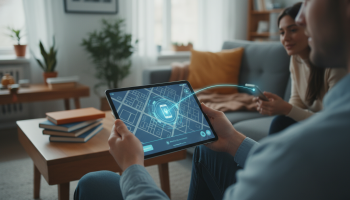
The sudden realization that your Android smartphone is missing—whether it slipped between couch cushions or was left in a bustling coffee shop—triggers an immediate sense of urgency. In an era where our mobile devices hold everything from financial credentials to irreplaceable family photos, knowing exactly how to find a lost Android phone is not just a convenience; it is a critical digital security skill. Modern Android architecture provides a robust suite of recovery tools, including Google Find My Device, IMEI tracking, and remote wiping capabilities, designed to locate, secure, and if necessary, erase your data from afar. At XsOne Consultants, we emphasize that proactive security configurations are the foundation of device recovery, ensuring that your digital identity remains protected even when the physical hardware is out of reach.
The Core Protocol: Leveraging Google Find My Device
For the vast majority of Android users, the primary and most effective method for recovery is the native Find My Device ecosystem. This service, formerly known as Android Device Manager, is integrated directly into the Google Play Services framework. To use this effectively, your device must be signed into a Google Account, have Location Services toggled on, and be connected to a mobile data or Wi-Fi network.
How to Access the Tracking Dashboard
You can access the tracking interface via any web browser by visiting the Find My Device portal or by using the app on another Android tablet or phone. Once logged in, the dashboard provides a real-time GPS map indicating the last known location of your device. The accuracy of this location typically falls within a few meters if the device has a clear line of sight to satellites or is connected to a known Wi-Fi access point.
Three Essential Remote Commands
- Play Sound: Even if your phone is set to silent or vibrate, this command forces the device to ring at maximum volume for five minutes. This is the ideal solution for localized loss (e.g., somewhere in the house).
- Secure Device: This locks the phone with your PIN, pattern, or password. If you haven’t set a lock, you can set one remotely. You can also add a message or callback number to the lock screen to assist a Good Samaritan in returning it.
- Erase Device: This is the nuclear option. It permanently deletes all data on the phone. Note that after erasing, Find My Device will no longer work. This is a crucial step if you suspect the device has been stolen and contains sensitive corporate or personal data.
Advanced Recovery: Finding a Phone That Is Offline or Powered Off
One of the most common questions we receive at XsOne Consultants involves locating a device that has run out of battery or has been manually turned off by an unauthorized user. Historically, this was nearly impossible, but recent updates to the Android Find My Device network have changed the landscape.
The Power of the Crowdsourced Mesh Network
Similar to Apple’s “Find My” network, Google has rolled out a decentralized offline finding capability. This utilizes Bluetooth proximity. If your lost phone is powered off but has a small amount of reserve power (or even if it’s just nearby other Android devices), it can broadcast a secure, encrypted signal. Other Android devices in the vicinity pick up this signal and report the location back to Google’s servers without the third-party device owner ever knowing. This end-to-end encrypted process ensures privacy while significantly increasing the chances of finding a dead phone.
Checking Google Maps Timeline
If the offline network doesn’t yield results, your Google Maps Timeline (Location History) is the next best resource. While it won’t show you where the phone is *now*, it will show you the exact path it took before it went offline. If the trail ends at a specific restaurant or a friend’s house, you have a definitive starting point for your physical search.
Manufacturer-Specific Solutions: Samsung and Beyond
While Google’s tools are universal, certain manufacturers provide proprietary layers of security that offer deeper integration with the hardware. Samsung’s SmartThings Find is the most prominent example.
Samsung SmartThings Find Features
Samsung users benefit from a dedicated recovery ecosystem that often outperforms generic tools. Features include:
- Remote Backup: Before performing a remote wipe, you can trigger a backup of your data to the Samsung Cloud.
- Extend Battery Life: You can remotely enable “Ultra Power Saving Mode” to keep the device alive longer, giving you more time to track it.
- Retrieve Calls and Messages: You can see the last 50 calls and messages made from the device, which can help identify if a thief is using your SIM card.
| Feature | Google Find My Device | Samsung SmartThings Find |
|---|---|---|
| GPS Tracking | Yes | Yes |
| Remote Ring | Yes | Yes |
| Offline Finding | Yes (Recent Models) | Yes (Highly Robust) |
| Remote Backup | No | Yes |
| Battery Extension | No | Yes |
The Legal and Technical Route: IMEI Tracking
Every mobile device has a unique 15-digit International Mobile Equipment Identity (IMEI) number. This is essentially the digital DNA of your phone. If your device is stolen, the IMEI is your most powerful tool for involving law enforcement and service providers.
How to Find Your IMEI Before Loss
It is vital to record your IMEI now. You can find it by dialing *#06# on your keypad, checking the original box, or looking in the “About Phone” section of your settings. If the device is already lost, you can often find the IMEI listed in your Google Dashboard under the “Android” section.
Blacklisting and Police Reports
Once you have the IMEI, you should report the theft to the police to obtain a case number. You can then provide this to your mobile carrier. Carriers can “blacklist” the IMEI, which prevents the device from connecting to any mobile network, effectively turning the phone into an expensive paperweight. This reduces the resale value of the stolen device and protects your cellular account from unauthorized charges.
Third-Party Security Apps: Are They Worth It?
While native tools are excellent, some users prefer third-party applications like Cerberus, Prey Anti-Theft, or Lookout. These apps often offer features that Google does not, such as:
- Remote Camera Access: Taking a “theftie” (a secret photo) of the person attempting to unlock your phone.
- SIM Change Alerts: Receiving a text message to a backup number if a new SIM card is inserted into your device.
- Geofencing: Receiving an alert if your device leaves a pre-defined “safe zone” like your office or home.
Expert Perspective: At XsOne Consultants, we advise caution with third-party apps. They require deep system permissions (Device Administrator or Root access). Ensure you choose a reputable developer to avoid compromising your privacy in the name of security.
Step-by-Step Checklist for a Lost Android Phone
- Don’t Panic: Use another device to log into google.com/android/find immediately.
- Attempt to Ring: If the map shows it is nearby, trigger the “Play Sound” feature.
- Secure the Lock Screen: If it’s in a public place, use “Secure Device” to display a contact number.
- Contact Your Carrier: If you cannot retrieve it quickly, call your service provider to suspend your SIM card.
- Change Sensitive Passwords: Even if the phone is locked, change passwords for banking, email, and social media apps that were logged in.
- File a Report: Contact local authorities with your IMEI and last known GPS coordinates.
- Remote Wipe: If all else fails, use the “Erase Device” command to protect your personal data.
The Role of Factory Reset Protection (FRP)
Modern Android devices (Version 5.1 and higher) come equipped with Factory Reset Protection. This security feature ensures that even if a thief performs a hardware factory reset, they cannot set up the device without your original Google Account credentials. This makes stolen Android phones significantly harder to resell, acting as a powerful deterrent against theft. Always ensure you have a screen lock (PIN, Password, or Biometrics) enabled, as FRP is automatically activated when a screen lock and Google account are present.
Preventative Measures: Hardening Your Device Today
The best time to find a lost phone is before you lose it. Implementing a “Defense in Depth” strategy ensures that you are prepared for the worst-case scenario.
Enable “Find My Device” Correcty
Go to Settings > Security > Find My Device and ensure the toggle is ON. Additionally, go to Settings > Location > Advanced > Google Location Accuracy and ensure this is enabled for the most precise GPS reporting.
Configure Biometrics and Strong Encryption
Always use a fingerprint or facial recognition combined with a strong alphanumeric password. Android devices are encrypted by default, but this encryption is only as strong as the password protecting the decryption key (your lock screen code).
Backup Your Data Regularly
Use Google One or Google Photos to ensure your contacts, messages, and media are backed up to the cloud. If you are forced to perform a remote wipe, having a current backup makes transitioning to a new device seamless.
“Digital security is not a product you buy, but a process you follow. The ability to locate a device is the final link in a chain of proactive privacy habits.” — Security Lead at XsOne Consultants
Common Obstacles in Device Recovery
The “Location Accuracy” Problem
Sometimes, Find My Device might show a large blue circle rather than a specific point. This happens when the device is using Cell Tower Triangulation or Wi-Fi signals rather than GPS. This usually occurs indoors. In these cases, the “Play Sound” feature is your best bet for pinpointing the device.
Two-Factor Authentication (2FA) Traps
One of the most frustrating scenarios is being unable to log into your Google Account to find your phone because the 2FA code is being sent to the very phone you lost. To avoid this, always:
- Print out Backup Codes for your Google Account and keep them in your wallet or a safe.
- Set up a secondary 2FA method, such as an Authenticator App on a tablet or a physical Security Key.
- Designate a “Trusted Contact” or a secondary email for recovery.
What to Do if Your Phone is Stolen (Not Just Lost)
If the GPS shows your phone moving at high speeds down a highway or sitting in an unfamiliar residential area, do not attempt to recover it yourself. Confronting a potential thief is dangerous. Instead, provide the live-tracking link or the exact coordinates to the police. Law enforcement agencies are increasingly equipped to handle “Find My Phone” cases, especially when clear location data is provided.
Summary of Recovery Methods
Finding a lost Android phone is a multi-layered process. While Google Find My Device is the primary tool, understanding the nuances of IMEI blacklisting, offline mesh networks, and manufacturer-specific ecosystems like Samsung’s provides a comprehensive safety net. By taking the time today to verify your settings and record your IMEI, you transform a potential digital disaster into a manageable inconvenience.
Frequently Asked Questions
Can I find my phone if the SIM card is removed?
Yes. As long as the device connects to a Wi-Fi network, Google Find My Device will continue to work. Additionally, the IMEI remains the same regardless of the SIM card, allowing for carrier-level blacklisting.
Can I track an Android phone from an iPhone?
Absolutely. Simply open the Safari browser on the iPhone, go to the Google Find My Device website, and log in with the Google credentials associated with the lost Android device.
Does “Find My Device” drain battery?
The impact on battery life is negligible. The service remains dormant in the background and only activates high-accuracy GPS when a request is made through the dashboard.
What if my phone is in “Airplane Mode”?
If Airplane Mode is active, the device cannot receive the “Find” command. However, if the device is running a recent version of Android, it may still be detectable via the offline Bluetooth mesh network if other Android devices are nearby.
For businesses looking to secure a fleet of mobile devices, XsOne Consultants provides comprehensive Mobile Device Management (MDM) strategies. We help organizations implement remote-wipe protocols and geofencing to ensure corporate data remains secure, no matter where the hardware travels. Protecting your digital assets starts with the right expertise and the right tools.

Editor at XS One Consultants, sharing insights and strategies to help businesses grow and succeed.