

Blog

How to
use google wallet Complete Setup Guide
The shift from physical leather bifolds to a streamlined
digital experience is no longer a futuristic concept;
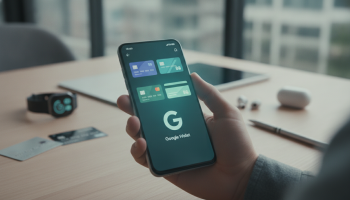
The shift from physical leather bifolds to a streamlined digital experience is no longer a futuristic concept; it is a daily reality for millions. Google Wallet has evolved from a simple payment app into a comprehensive digital ecosystem designed to store everything from credit and debit cards to digital car keys, boarding passes, and vaccination records. In this definitive guide, we will explore how to master the Google Wallet interface, ensure your financial data remains encrypted, and leverage advanced features that go beyond simple NFC (Near Field Communication) payments. Whether you are using an Android smartphone or a Wear OS smartwatch, this manual provides the technical depth and practical insights required to digitize your life securely.
Understanding the Evolution: From Google Pay to Google Wallet
To use Google Wallet effectively, one must first understand its architecture. While many users use the terms “Google Pay” and “Google Wallet” interchangeably, they serve distinct purposes. Google Wallet is the digital container (the “leather” wallet) that holds your cards, passes, and IDs. Google Pay is the payment service engine that facilitates the actual transaction. As a Senior SEO Director observing the fintech space, I have seen Google streamline this experience to compete directly with Apple Wallet, focusing heavily on tokenization—a process where your actual card number is never shared with the merchant. Instead, a unique encrypted code is used for every transaction, significantly reducing the risk of data breaches.
System Requirements and Compatibility
Before initiating the setup, ensure your hardware meets the necessary security protocols. Google Wallet requires an Android device running Android 9.0 (Pie) or higher. More importantly, your device must have NFC capabilities enabled to perform contactless payments. For wearable enthusiasts, a Wear OS 2.0 or later device is required. Security is paramount; therefore, your device must pass Google’s security standards, meaning it cannot be rooted or running a bootloader-unlocked ROM, as these configurations compromise the TEE (Trusted Execution Environment) where sensitive keys are stored.
Step-by-Step Initial Setup: Building Your Digital Foundation
Setting up Google Wallet is a straightforward process, but doing it with security in mind requires attention to detail. Follow these steps to ensure a seamless integration.
1. Installation and Account Syncing
Download the Google Wallet app from the Google Play Store. Upon launching, the app will automatically prompt you to sign in with your primary Google Account. It is highly recommended to use an account secured with Two-Factor Authentication (2FA). This adds a critical layer of protection should your device ever be compromised.
2. Adding Your First Payment Method
To add a credit or debit card, tap the “Add to Wallet” button. You can use your phone’s camera to scan the card details or enter them manually. Google will then communicate with your bank to verify the card. Most banks require a verification code sent via SMS or email. This is the Issuer Verification stage, a mandatory security step to prevent unauthorized card additions.
3. Enabling Biometric Security
Never bypass the lock screen requirements. Google Wallet functions best when paired with biometric authentication (fingerprint or facial recognition). Go to your phone’s “Security” settings and ensure that a screen lock is active. For high-value transactions, Google Wallet may require an additional biometric prompt even if the phone is already unlocked.
| Feature | Physical Wallet | Google Wallet |
|---|---|---|
| Data Protection | Card numbers visible | Tokenized (Encrypted) |
| Loss Recovery | Manual cancellation of cards | Remote wipe via “Find My Device” |
| Authentication | None (unless ID is checked) | Biometrics / PIN required |
| Organization | Bulky, prone to loss | Searchable, categorized |
Advanced Features: Beyond Simple Payments
While contactless payments are the primary draw, the true power of Google Wallet lies in its ability to consolidate your entire pocket. At XsOne Consultants, we often advise clients on integrating digital workflows, and Google Wallet is a prime example of consumer-facing digital transformation.
Digital Keys and Automotive Integration
Select modern vehicles from manufacturers like BMW, Hyundai, and Kia now support Digital Car Keys. By storing your car key in Google Wallet, you can unlock and start your vehicle using your phone’s UWB (Ultra-Wideband) or NFC chip. This feature uses the same high-level encryption as your credit cards, ensuring that your vehicle remains secure even if your phone’s signal is intercepted.
Transit Passes and Commuter Efficiency
For urban commuters, Google Wallet is a game-changer. You can add transit cards for major cities like London, New York, and Tokyo. Some systems support “Open Loop” payments, where you simply tap your phone at the turnstile using your default payment card, while others require a dedicated digital transit card stored within the app. The “Smart Transit” feature can even notify you when your balance is low.
Loyalty Programs and Gift Cards
Stop carrying a ring of plastic loyalty tags. You can scan the barcode of any loyalty card (Starbucks, Sephora, Walgreens) and save it to Google Wallet. The app uses geofencing technology to surface these cards on your lock screen when you are physically near the store, ensuring you never miss out on rewards points.
The Expert Perspective: Security Protocols You Must Know
As a Senior SEO Director and tech strategist, I cannot stress enough the importance of the Secure Element (SE). Unlike standard apps that store data in general memory, Google Wallet utilizes a dedicated hardware chip to process transactions. This chip is isolated from the rest of the operating system, making it virtually impossible for malware to “sniff” your card details during a transaction.
Pro Tip: If you ever lose your phone, do not panic. Use the Google Find My Device service to remotely lock your phone or wipe its data. Because your card details are tokenized, you don’t necessarily need to cancel your physical cards immediately—simply removing the tokens from the lost device via your Google Account dashboard will disable its payment capabilities.
Optimizing the User Experience: Customization and Shortcuts
To truly master Google Wallet, you should optimize how you access it. Efficiency is the hallmark of a power user.
- Lock Screen Shortcuts: Most Android devices allow you to place a Google Wallet shortcut on the lock screen. This enables you to access your passes without fully unlocking the device.
- Quick Settings Toggle: Swipe down from the top of your screen to add the “Wallet” toggle to your Quick Settings menu. This is the fastest way to switch between different payment cards on the fly.
- Default Card Selection: If you have multiple cards, set your most-used card as the “Default for Contactless.” You can do this by tapping the card in the app and selecting “Make default for contactless.”
Managing Boarding Passes and Event Tickets
When you receive a confirmation email for a flight or a concert in Gmail, Google Wallet can automatically pull that information and create a digital pass. This integration is part of the Google Workspace ecosystem. If the automatic sync doesn’t occur, look for the “Add to Google Wallet” button in the airline’s app or the ticket provider’s website. These passes are dynamic; if your flight gate changes, the pass in your wallet will often update in real-time.
Troubleshooting Common Google Wallet Issues
Even the most robust systems encounter hiccups. Here is how to resolve the most common obstacles.
“Phone Doesn’t Meet Security Requirements”
This error usually occurs if your device has a modified bootloader, is rooted, or is running an uncertified version of Android. Google uses Play Integrity API (formerly SafetyNet) to verify the health of your device. To fix this, ensure you are on the latest official software update from your manufacturer.
NFC Not Responding at Terminal
If your phone doesn’t react when held near a payment terminal:
- Verify that NFC is turned on in your connection settings.
- Ensure Google Wallet is set as your Default Payment App in the “Tap and Pay” settings.
- Check if your phone case is too thick or contains metal, which can interfere with the radio frequency.
Card Declined in Wallet but Works Physically
This often happens if the token expired or was flagged by your bank’s fraud department. The simplest solution is to remove the card from Google Wallet and re-add it to generate a fresh Virtual Account Number.
The Future of Digital Identity: IDs and Health Records
Google is currently working with government agencies to integrate Digital Driver’s Licenses (mDL) and state IDs into the wallet. While currently limited to specific U.S. states and regions, this represents the final frontier of the digital wallet. Furthermore, private health passes and insurance cards are becoming standard features, allowing for a contactless check-in at medical facilities.
For businesses looking to stay ahead of these trends, partnering with experts like XsOne Consultants can provide the strategic roadmap needed to navigate the intersection of mobile technology and consumer behavior. As we move toward a cashless society, understanding the nuances of digital storage is a competitive advantage.
Frequently Asked Questions About Google Wallet
Is Google Wallet free to use?
Yes, Google Wallet is a free application. There are no fees for adding cards, storing passes, or making transactions. However, standard credit card interest rates and bank fees still apply to your individual accounts.
Can I use Google Wallet without an internet connection?
Yes. Because Google Wallet uses NFC technology and stored tokens, you can make a limited number of transactions without an active data connection. The app will periodically need to connect to the internet to refresh its security tokens.
Google has stated that it does not sell your transaction history to third parties for advertising purposes. Your personal payment information is kept private, though Google may use aggregated, de-identified data to improve its services.
What happens if my phone battery dies?
Unlike a physical card, if your phone is powered off, you cannot use Google Wallet for payments. However, some specialized transit cards may work for a short period after the phone shuts down due to low battery, depending on the device’s power reserve capabilities.
Summary Checklist for Google Wallet Mastery
- Verify Hardware: Ensure Android 9.0+ and NFC are active.
- Secure the Device: Use a strong PIN and biometric authentication.
- Audit Your Cards: Remove expired cards and set a primary default.
- Enable Gmail Sync: Allow the wallet to automatically pull tickets and boarding passes.
- Plan for Emergencies: Familiarize yourself with Find My Device to protect your data remotely.
By following this guide, you have moved beyond basic usage into the realm of a power user. Google Wallet is more than a convenience; it is a sophisticated tool for identity management and financial security. In an era where data sovereignty is paramount, mastering these digital tools ensures that you remain in control of your personal information while enjoying the seamless efficiency of the modern mobile landscape.
As digital ecosystems continue to merge, the role of the digital wallet will only expand. Staying informed through trusted sources and experts like XsOne Consultants ensures that you are prepared for the next wave of technological integration, from blockchain-based IDs to biometric-only payments. Your journey to a clutter-free, secure, and digital-first lifestyle starts with the device already in your hand.

Editor at XS One Consultants, sharing insights and strategies to help businesses grow and succeed.