

Blog

Mobile App
Design Principles for Beginners
Designing a mobile app goes far beyond creating something
that looks appealing — it’s about building a
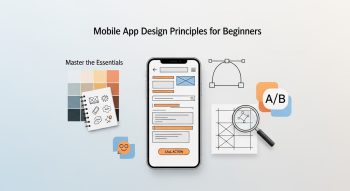
Designing a mobile app goes far beyond creating something that looks appealing — it’s about building a seamless, intuitive, and delightful user experience. Whether you’re a beginner designer, developer, or entrepreneur, understanding mobile app design principles is essential for creating apps that engage users and stand the test of time.
In this complete guide, we’ll explore core design principles, best practices, tools, and beginner-friendly strategies to help you design mobile apps that look beautiful and perform flawlessly.
1. What Is Mobile App Design?
Mobile app design is the process of conceptualizing, planning, and crafting how an app looks and feels. It involves two main components:
-
🎨 UI (User Interface) Design: The visual part — colors, icons, typography, layout, and animations.
-
🧭 UX (User Experience) Design: The functional part — how users interact, navigate, and complete tasks.
Both UI and UX work together to create an app that’s not only visually appealing but also usable, accessible, and emotionally engaging.
💡 Example: Think of Instagram. The design looks simple, but every tap, swipe, and icon placement has been carefully tested to make it feel effortless.
2. Why Mobile App Design Matters
An app’s design is often the make-or-break factor for its success. Even if your app solves a real problem, poor design can lead users to abandon it within seconds.
Key Reasons Why Design Matters
-
First Impressions Count: 94% of users judge an app based on its design and usability.
-
Boosts User Retention: A well-designed app keeps users coming back.
-
Supports Brand Identity: Design communicates trust and consistency.
-
Drives Conversions: Clear, user-centered layouts increase engagement and sales.
💡 Fun Fact: According to Google, if a mobile app takes more than 3 seconds to load or confuses users visually, 53% of them will leave.
3. Core Mobile App Design Principles for Beginners
Let’s explore the essential principles that guide all great app designs — whether you’re creating a social app, fitness tracker, or e-commerce platform.
1. Simplicity: Less Is More
Simplicity is the foundation of good design.
A clean, uncluttered interface helps users focus on what matters most.
✅ Tips for Simple Design
-
Stick to one primary goal per screen (e.g., “Sign Up” or “Add to Cart”).
-
Use minimal colors and consistent fonts (2–3 max).
-
Remove unnecessary text and buttons.
-
Organize information in digestible sections.
💡 Example: Google Keep uses minimal design to let users focus on creating and managing notes easily.
2. Consistency: Build Familiarity
Consistency helps users learn your app faster. When icons, buttons, and layouts behave predictably, users feel comfortable.
✅ Tips
-
Follow platform-specific design systems:
-
Material Design (Android)
-
Human Interface Guidelines (iOS)
-
-
Use consistent icons, fonts, and navigation patterns.
-
Keep spacing, alignment, and colors uniform across screens.
💡 Example: Apple Music maintains consistent typography, buttons, and colors throughout all screens.
3. Visual Hierarchy: Guide the Eye
A strong visual hierarchy directs users’ attention to key actions and content.
It tells users what to look at first, second, and last.
✅ How to Apply
-
Use size, color, and contrast to emphasize important elements.
-
Position main buttons (CTAs) in easily reachable areas.
-
Arrange content logically — from most important to least.
💡 Example: Spotify’s “Play” button stands out prominently using bright green color and central positioning.
4. Touch-Friendly Design
Users interact with apps using their fingers, not cursors — so design accordingly.
✅ Tips for Touch Optimization
-
Minimum touch target: 44×44 px (Apple’s standard).
-
Keep interactive elements well-spaced.
-
Avoid placing buttons too close together.
-
Design with one-hand use in mind.
💡 Example: WhatsApp’s chat interface allows users to send messages or attach files comfortably with one thumb.
5. Readability and Typography
Readable text makes content accessible and enjoyable.
✅ Typography Tips
-
Use clear, legible fonts like Roboto, SF Pro, or Open Sans.
-
Maintain a minimum font size of 14–16 px for body text.
-
Ensure strong contrast between text and background.
-
Use hierarchy in typography — titles, subtitles, and body text.
💡 Example: Medium uses large, clean typography and plenty of white space to enhance reading comfort.
6. Optimize for Performance and Speed
An app’s performance directly impacts user satisfaction. Heavy graphics and animations may look great — but not at the cost of speed.
✅ Optimization Tips
-
Compress images without losing quality.
-
Reduce unnecessary transitions.
-
Use vector graphics (SVG) where possible.
-
Optimize for offline use when feasible.
💡 Example: YouTube Go is designed for low-data environments, offering optimized loading and offline support.
7. Accessibility and Inclusivity
Accessibility ensures everyone — including users with disabilities — can use your app comfortably.
✅ How to Design Accessibly
-
Use high-contrast colors for text.
-
Provide alt text for images.
-
Add voice-over support and keyboard navigation.
-
Avoid relying only on color for differentiation (e.g., red vs. green).
💡 Example: Apple’s accessibility features like VoiceOver and dynamic text scaling make apps more inclusive.
8. Feedback and Response
When users perform an action, your app should acknowledge it instantly. Feedback builds trust and clarity.
✅ Ways to Provide Feedback
-
Button color change or animation when tapped.
-
Success/failure messages for actions.
-
Progress bars for loading or uploads.
-
Gentle vibrations for confirmation (haptic feedback).
💡 Example: Instagram uses smooth animations and loading indicators to confirm likes, uploads, and posts.
Good navigation is intuitive, predictable, and requires minimal effort.
✅ Navigation Tips
-
Keep the main menu accessible (bottom or side navigation).
-
Limit menu items (ideally 3–5).
-
Use recognizable icons (Home, Search, Profile).
-
Ensure consistent navigation placement across screens.
💡 Example: TikTok’s bottom navigation bar offers easy thumb access for essential actions.
10. Personalization and Emotion
Adding personalization makes users feel seen and valued.
Design elements like names, progress streaks, and themes can increase engagement.
✅ Tips
-
Allow users to customize profiles or app themes.
-
Offer content based on behavior or preferences.
-
Include motivational visuals or quotes for emotional connection.
💡 Example: Duolingo personalizes lessons and celebrates milestones with animations and rewards.
4. The Design Process: From Idea to Interface
Here’s a simple roadmap for beginners to go from concept to a functional app design.
Step 1: Research and Define Your Audience
Understand who your users are — their needs, goals, and frustrations.
Create user personas and identify pain points to design better solutions.
Step 2: Sketch and Wireframe
Start with low-fidelity wireframes — simple outlines showing layout and navigation flow.
This helps visualize the app’s structure before focusing on visuals.
🛠️ Tools: Balsamiq, Whimsical, Miro
Step 3: Create a Visual Style
Decide your color palette, fonts, icons, and design system.
Keep the tone consistent with your brand — calming, energetic, or professional.
🛠️ Tools: Adobe XD, Figma, Sketch
Step 4: Prototype and Test
Build an interactive prototype that users can click through.
Run usability tests to identify confusing screens or actions.
🛠️ Tools: Figma, InVision, Marvel, ProtoPie
Step 5: Iterate and Refine
Gather user feedback and refine your design.
Good design is evolutionary — it improves with real-world testing.
5. Common Mobile App Design Mistakes to Avoid
Even small design mistakes can lead to poor user experiences.
Avoid these beginner errors:
❌ Overcrowding the interface
❌ Ignoring platform guidelines
❌ Using inconsistent icons or fonts
❌ Forgetting accessibility
❌ Overusing animations
❌ Poor color contrast
❌ Neglecting real-user testing
💡 Tip: Always design with your user’s journey in mind, not your preferences.
6. Best Tools for Beginner App Designers
| Purpose | Recommended Tools |
|---|---|
| Wireframing | Balsamiq, Whimsical, Moqups |
| UI Design | Figma, Sketch, Adobe XD |
| Prototyping | InVision, ProtoPie, Marvel |
| Collaboration | Notion, Miro, Slack |
| Icon & Illustration | Flaticon, Undraw, Icons8 |
💡 Pro Tip: Start with Figma — it’s free, beginner-friendly, and ideal for collaboration.
7. Future Trends in Mobile App Design (2025 & Beyond)
Design is evolving fast. Stay ahead by learning emerging trends:
-
🎨 Dark Mode Optimization – Reduces eye strain and saves battery.
-
🧠 AI-Powered Personalization – Smarter UX based on user behavior.
-
🌈 3D and Micro-Interactions – Enhance realism and delight.
-
🪄 Voice-First Interfaces – Integration with Siri, Alexa, or Google Assistant.
-
⚡ Minimal & Calm Design – A shift toward mindful, distraction-free apps.
-
♿ Accessibility-Driven UX – Inclusive experiences for all users.
8. FAQs: Mobile App Design for Beginners
1. Do I need coding skills to design mobile apps?
No. App design focuses on visuals and usability. Tools like Figma or Adobe XD let you design without any coding knowledge.
2. What’s the difference between UI and UX?
UI is about aesthetics (how it looks), while UX is about functionality (how it works).
3. How can I improve my design skills as a beginner?
Study popular apps, practice wireframing, take online UX/UI courses, and seek feedback from peers.
4. Which design platform should I start with?
Start with Figma — it’s free, collaborative, and ideal for both beginners and professionals.
5. How many colors should I use in my app?
Stick to 2–3 primary colors and a few neutral shades for balance.
6. What makes a design user-friendly?
Clarity, simplicity, and fast performance. Every design decision should make the user’s journey easier.
7. How important is accessibility in design?
It’s critical. Accessible design ensures your app can be used by everyone, including those with disabilities.
8. What is responsive app design?
It ensures your app adapts beautifully across different screen sizes and devices.
9. How do animations affect UX?
When used subtly, animations guide user focus and make interactions smoother. Overuse can slow performance.
10. How often should I update my design?
Continuously refine your design based on analytics, user feedback, and emerging trends.
9. Conclusion
Designing a mobile app is both an art and a science. As a beginner, your focus should be on simplicity, clarity, and user empathy. Start small — learn the basics, experiment with tools, and iterate based on feedback.
Remember, great design isn’t about decoration — it’s about solving problems beautifully.
When your app feels easy to use, looks appealing, and genuinely helps users, you’ve succeeded as a designer.

He is a SaaS-focused writer and the author of Xsone Consultants, sharing insights on digital transformation, cloud solutions, and the evolving SaaS landscape.